Evie Cooper
Evie Cooper
January 15, 2026
Document Number 9963-0413-56
PACKET
0413-56
This document originated from the HSnet Document Management System.
When placing this book in a binder, place the cover page with artwork on it in the slip cover at the front and discard the second cover page if you wish.
First Edition, January 27, 2026
Note: This is the initial version of this document, so it is likely to have all manner of errors.
© Evie Cooper 2026
Not for use where life or limb may be at risk.
I have tried to compose this to be as turnkey as possible, but I will have inevitably made mistakes somewhere. If you find any, please email me at wec@bam.moe!
AI statement: no generative AI was used in the composition of this work.
This document was formatted on an IBM System/390 Multiprise 3000 mainframe running z/VM 4.4 with BookMaster 1.4.
An Introduction to Packet Radio
Surveying the Landscape: Protocols and Stacks
Packet radio is a very advanced world, and I assure you that this guide only barely does the protocol family justice. Amateur packet radio has a rich history of protocol development and asserting an influence on later network protocol stacks, and played a pivotal development in the popularization of the Internet Protocol with hobbyists.
In the past, computer networks were not nearly as commonplace, accessible, or affordable-to-construct as they are today. Before the modern era, the ARPAnet was inaccessible to anyone that wasn't a government employee, contractor, or university student in the US; while that did exist, the world was dotted by numerable corporate networks that used strange protocols, unusual hardware, and were of no interest to the casual hobbyist. Where the ARPAnet required the blessing of the US government and enterprise networks required strange mainframes, communications controllers the size of refrigerators, and things like that, the amateur radio operators of the late 1970s and early 1980s looked on to things their peers had developed but seemed so out-of-touch.
An important milestone in the development of computing networking was Professor Norman Abramson at the University of Hawaii's project: ALOHAnet. The Hawaiian Islands were separated by oceans, and it was not affordable for a group of universities to lay cables into the ocean to connect their sites; as such, Dr. Abramson sought a wireless approach. He figured that since a single radio station could cover a sizable portion of the Islands, couldn't the same approach work for a wireless computer network?
The development of ALOHAnet resulted in a 9600 baud UHF packet radio system that had reasonably been perfected by 1975, and the Aloha medium-multiple-access protocol had inspired many descendent technologies. 1
In the San Francisco Bay, DARPA worked with SRI International to construct a network called PRNET; this was the aptly-named Packet Radio NETwork. These researchers worked from 1973 to 1976 to run the ARPAnet NCP protocol (which preceded the current Internet Protocol, but is radically different) wirelessly. Rather than using a more primitive FSK modem design like the ALOHAnet project did, PRNET used direct-sequence-spread-spectrum modems that included a forward error correction algorithm -- this resulted in 100 kbps and 400 kbps radio channels filling the air. Most pivotally, the PRNET project demonstrated the first internetworking wherein the ARPAnet, PRNET, and SATNET (a satellite communications network) were interlinked. 2
Amateur packet radio started in Montreal, Quebec in May 1978: VE2PY (Robert Rouleau), VE2BQS (Norm Pearl), and VE2EHP (Jacques Orsali) acquired special authorization from the Canadian government (an "Amateur Radio Digital Operator's Certificate") to transmit ASCII-encoded data on the 1.25-meter amateur band with custom equipment. On the other side of the continent, VE7APU (Doug Lockhart) and his group, the Vancouver Area Digital Communications Group) began to produce proper modems that were much more capable than the earlier Montreal Amateur Radio Club work. These devices became known as Terminal Node Controllers.
South of Canada in the United States, the FCC permitted ASCII transmissions in 1980; shortly after that in December 1980, KA6M (Hank Magnuski) had erected the first packet repeater on 2 meters. Since the old NCP protocol had yet to be replaced, Hank scored a very valuable victory: the entirety of the 44.0.0.0/8 network was allocated for amateur radio, and became known as AMPRnet. 3
Two years later (in January 1983), NCP was replaced with TCP, and RFC 790 listed it amongst several other networks. 4
1982 was a pivotal year for packet radio. The Pacific Packet Radio Society (California), the Tuscon Amateur Packet Radio Corporation (TAPR, Arizona), and the Amateur Radio Research and Development Corporation (AMRAD, Washington, D.C.) were hot on the trails of developing consumer hardware for this new craze.
All of these incompatible TNCs meant that, though everyone used Bell 202 modems, nobody could interlink with each other. Everyone claimed to use a modified "Vancouver Protocol" (based on the work of VADCG), but nobody really was. In 1982, several meetings were held, consisting of many of the big names in packet radio of the day. They realized they needed a standard, and they eventually came up with the "Amateur Radio Protocol."
This protocol was based on the extremely popular X.25 protocol, and was named AX.25 (more information on it will be presented after this chapter). It was WB4JFI (Terry Fox), who was the head of the ARRL's Ad-Hoc Committee on Amateur Radio Digital Communication who signed off on the standard after it had been decided; this occurred on October 26, 1984.
AX.25 was a massive improvement over the existing VADCG protocols. For one, it could handle 128 connections at the same time -- on the eve of AX.25's standardization, it was estimated that were no more than 200 hams using packet radio in the entirety of the US and Canada combined! One of the early TNCs that was responsible for settling this issue was produced by a company called "Bill Ashby and Sons"; that company built a simple board based off of the Vancouver protocol hardware and software, and made it available. Richcraft Engineering, ran by W4UCH, came up with an ingenious idea: use the CP/M microcomputer OS to implement a software-based packet radio stack. This greatly simplified part complexity, and removed the need to use actual modem parts (often called "HDLC controllers" because they were lifted straight from wireline X.25 modem hardware). After that, GLB Electronics came onto the scene with something that would become extremely familiar to anyone that finds old TNCs at hamfests: they designed a simple and cheap Z80-based microcomputer that drove the audio interface much in the same way that the Richcraft board did; this was the PK-1, and it was the first popular software-only TNC.
The TAPR was a strange bunch, and consisted of not more than 20 amateurs. On a weekend, they all met in the University of Arizona's Computer Science building, and pitched an interesting project idea: "could we develop a cheap packet radio system that was capable of transmitting microcomputer software via the airwaves?"
Interestingly, many of the TAPR engineers worked for Motorola, who was just down the street; the efforts of that club were shown to the world in 1982 at the First American Radio Relay League Computer Networking Conference. Drawing on the successes of the past, they launched a very good and high-quality TNC kit in July 1983; whereas the earlier attempts were somewhat shoddy in their design and just as bad in their manufacturing, the TAPR kits felt almost professional -- the quality of their kits readily rivalled commercial radio vendors (as in, companies that made radio hardware for the non-amateur "real world" market). The first run of this TNC was at 9:12 PM PST on June 25, 1982; blazing away on 146.55 MHz, KD2S (Den Connors) and Lyle Johnson (WA7GXD) held the first contact using Heath H-89 serial terminals.
In 1984, the TAPR TNC-1 board took the world by storm. It wasn't for lack of trying, though; the production of the boards was very troubled. In December 1982, just as they were getting ready to launch the aforementioned board, the TAPR guys were having nonstop solder problems on their circuit board assembly line. This resulted in a mad dash to fix the productions, but the group was successful -- the board took the world by storm.
As soon as these became commonplace, all manner of bulletin board systems (BBSes) began to pop up. One of the first BBSes put up on the East Coast was by AI2Q (Alex Mendelsohn), and was powered by a Xerox 820 desktop computer running CP/M. Digipeaters quickly cropped up, bringing the footprint of these BBSes to hundreds of mile in a matter of weeks. Since the packet radio stack ran on that Xerox 820, NW2X (Howie Goldstein) had a bright idea during his time as a student at the Florida Institute of Technology: use the surplus and obsolete Xerox 820 motherboards to greatly evolve the function of those TAPR TNC-1 boards!
The TNC-2 was announced at the 1985 Dayton Hamvention, to amazing acclaim. This was based on the same idea as the early Z80 soft-TNC pioneers, but greatly upgraded after many had experimented with the TNC-1 and Xerox 820 combination system. The TNC-2 contained a Z80, some RAM, a ROM chip, and a modem interface; this was quickly licensed out to several companies, who began manufacturing them all over the world. By the early 90s, TNC-2 devices were ubiquitous. Packet radio had hit it big, arguably much bigger than it is today.
Now, it is up to you to breathe life back into this amazing forgotten world in an age of an uncertain Internet future.
Before proceeding, I recommend you familiarize yourself with some key terms heard in packet radio:
For 99% of packet radio installations, the TNC will connect to a VHF/UHF FM radio through its audio interface; it also likely has the ability to key the radio -- since accurate transmit/receive timings are paramount for packet radio, you cannot use your radio's VOX control for bidirectional packet (and you should not use it for unidirectional packet either, honestly)!
| Audio filtering and high-speed packet |
|---|
|
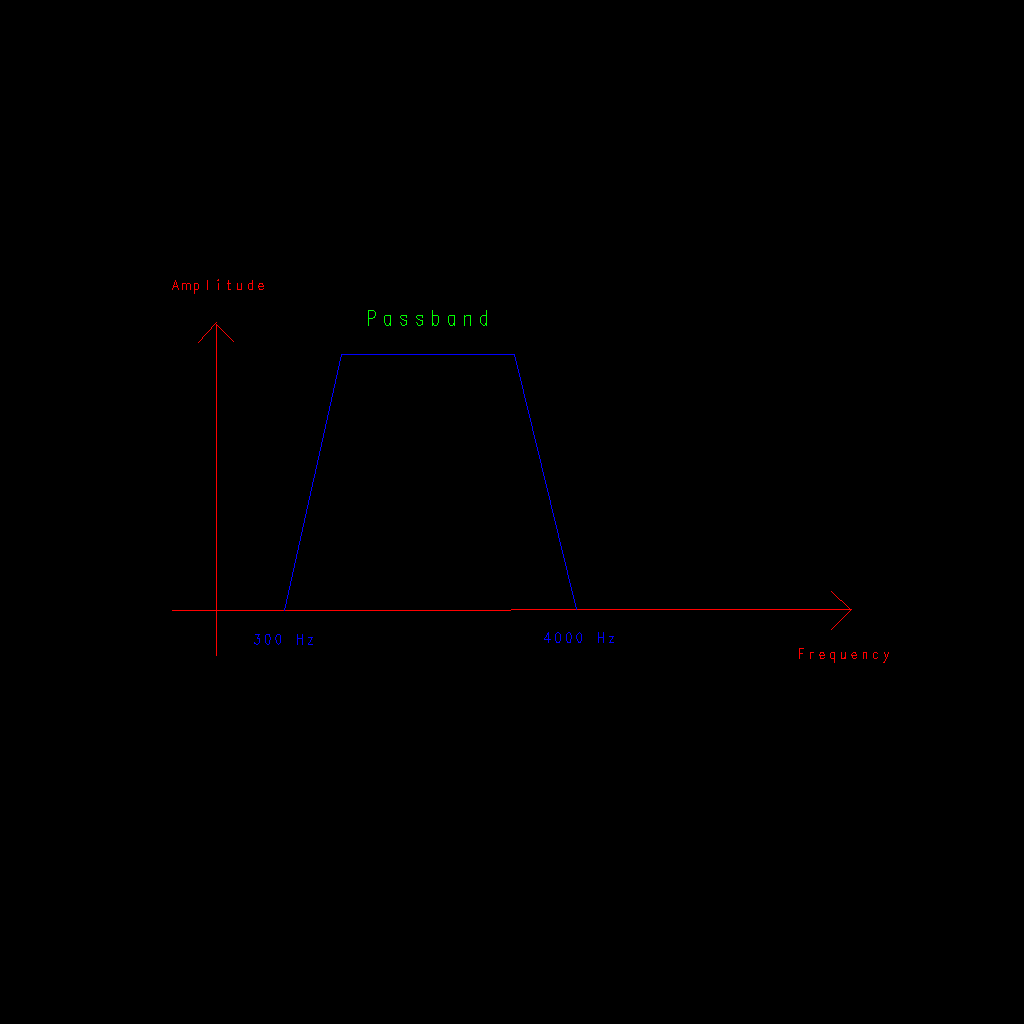
For most people using a Baofeng HT or mobile radio, the highest speed you will be able to attain is 2400 baud (with 1200 baud being the most common, for things like APRS). This is not because packet radio has not evolved (in fact, there are megabaud packet radio systems), but because the radio applies an audio filter on both the microphone input and the audio output. The audio input is filtered to cut off any audio below 300 Hz (this is to prevent bass tones from tripping a repeater's PL tone decoder, which may stop you from being able to transmit into the repeater for the duration of your transmission) and above 4 KHz (to conserve FM bandwidth); likewise, the audio output is filtered to remove anything above 4 KHz and below 300 Hz (to prevent screws backing out due to constant PL tone bass vibrations on the speaker, or so I'm told). As such, in order to go faster (such as up to 9600 baud, the most-desired speed), one must do away with these filters. This is done by tapping the discriminator and directly driving the modulator. This can be done by examining the schematic for your radio, but many VHF/UHF mobiles made through the late 1990s to today contain a port at the back that has a 9600 baud packet output; note that it is paramount that you check the manual to determine what the output level is (too low of an output level results in poor reception) and ensure you do not overdrive the modulator input (doing so could put your transmissions out-of-spec). |
Figure 1. VHF/UHF LMR audio frequency range
When discussing packet radio, it helps to have an understanding of the numerable protocols found on the air:
Before we get carried away, it is a good idea to familiarize oneself with these protocols:
The primary network protocol of amateur packet radio is AX.25., and it is a link layer protocol. This is a protocol derived from the earlier (but once extremely popular) X.25 protocol family, a stack of protocols that provided:
If you are passingly-familiar with TCP, you may realize that these X.25 features share significant overlap with TCP features -- TCP was intended to emulate the X.25 PLP (packet layer protocol) over IP.
Addressing Scheme: AX.25 provides a very simple service: a virtual circuit, between two callsigns (which includes the SSID). This means that AX.25 addresses use ham radio callsigns, so WA4XYZ-6 and N4ABC are valid.
The suffix after the dash is called the SSID, i.e. the Service Set Identifier. This allows you to have 16 different AX.25 addresses with one callsign; by convention, you would not writeN4ABC-0, but would instead write N4ABC without the suffix.
The fundamental unit of AX.25 communication is the frame. This contains the destination callsign, source callsign, protocol number, and a control byte; the control byte selects the frame type (shown below), and the protocol number identifies the packet contents (also listed below).
Operating Modes: AX.25 has two operating modes: disconnected and connected. In the disconnected mode, the following frame types may be sent:
When station 1 sends an SABM frame to station 2, station 2 will hopefully reply with a UA frame -- if this does happen, the two stations will now be "connected". In this state, the following frames can be sent:
Packet Format: As you may imagine, UI frames are often used for beacons or to carry additional network protocols. Now, examine the following diagram of an AX.25 frame:
Figure 2. AX.25 frame structure

Note that the image here is good for either a numbered or unnumbered frame (that is, connected-mode or unconnected-mode). It is a good idea to break down the packet structure for additional clarity:
The "no layer-3" AX.25 operating mode is used for connections from a packet terminal to a BBS or packet radio command-line shell node.
In an unconnected state, you can send and receive UI-frames by using some specific command that the TNC or packet stack provides; there is no acknowlegement. In a connected state, I-frames are sent instead and both sides expect to exchange those RR frames. The window size controls how many packets each side can exchange before a RR frame must be sent. Finding a good window size is crucial to reliable network links! As mentioned above, the sequence numbers run 0 to 7, and so does the range for possible window size values.
| A Bigger Window? |
|---|
|
There is a mechanism to get more than 8 packets in a window, and it is called modulo-128; it lengthens the size of the control field to three bytes (with byte 1 being the frame type, byte 2 being the modulo-8 window size, and byte 2 and 3 together being the modulo-128 window size). Most packet radio stacks support this, but no real TNCs do as far as I am aware. |
From Packet to Transmission: The next step of transmission occurs if you are driving your packet TNC from a PC running the AX.25 network stack code on a PC. 8 Before being sent to the TNC, the packet needs to be wrapped in a KISS frame. KISS, short for Keep It Simple Stupid, is a protocol that is very reminiscent of the UNIX SLIP (Serial Line IP) protocol. The AX.25 frame is wrapped in 0xC0 bytes, and any of those bytes encountered in the packet are escaped with a double-byte escape. Examine the following diagram of a KISS frame:
Figure 3. KISS + AX.25 frame structure

Now, just before transmission (this is done in the TNC), the AX.25 frames are stripped of their KISS framing and wrapped into an HDLC frame, just like X.25. HDLC (High-level Data Link Control) is the equivalent of the Ethernet MAC protocol for X.25 networks -- it provides a very simple link layer protocol that X.25 rode on top of. AX.25 is similar, except it replaces most of the fields of an HDLC frame; AX.25 encapsulated into HDLC only adds the frame mark byte (which is always 0x7E) and a frame check sequence (the standard HDLC CRC algorithm computes this) at the end.
Examine the following diagram to see an HDLC-encapsulated AX.25 frame:
Figure 4. HDLC + AX.25 frame structure

| Two link-layer protocols? |
|---|
|
This is a common question heard when discussing non-TCP/IP protocols; a number of non-Ethernet-based protocols have what one might would describe as more than one link-layer protocol! X.25 is a network-layer protocol, and it used HDLC over synchronous-serial links (similar to KISS). Now, when the AX.25 frame is sent to the TNC, it is wrapped in a KISS encapsulation; when that packet arrives at the TNC from the host computer, the TNC's firmware will strip the KISS encapsulation off, re-frame it into HDLC instead instead of KISS, then proceed with the packet encoding and modulation. |
Once the packet has arrived at the TNC and has been re-framed in HDLC framing, it will be encoded using some kind of serial data encoding algorithm (like NRZ, NRZI, or Manchester coding), modulated, and the audio stream will be sent to the radio for transmission.
For the TNCs that use 6PACK framing, the TNC directly speaks an HDLC-like protocol (and the attached computer is much more aware of the status of the RF channel). The 6PACK protocol results in the TNC telling the host computer whenever it is receiving data, and the host computer can trigger (in much more detail) partial transmissions.
| What's the point of 6PACK? |
|---|
|
6PACK is an alternate framing method (i.e. "line discipline") to KISS that allows for multi-dropped TNCs (multiple TNCs on a serial port daisy chain). TNCs that provide this function are rare in the modern era, but it was once provided by swapping out the ROM chips in the TNC. |
When AX.25's limit of two digipeater hops started to become an issue in the late 80s (as packet networks were exploding in popularity by this time), a solution needed to be found, and found fast! This originally came in the form of a ROM chip (made by Software 2000) that replaced the factory ROM in a TNC-2 compatible TNC (such as the ubiquitous ones made by MFJ), and was called "the Net ROM". Soon thereafter, the protocol it spoke became known as NET/ROM.
NET/ROM alleviates the two-hop constraint by allowing nodes to set up virtual circuits between themselves, then packets could pass through many nodes simply by passing through those virtual circuit tunnels. Since AX.25 has a limitation of one virtual circuit tunnel per callsign pair per protocol number, it is highly recommended that you use a different SSID for your "basic AX.25 connections" and your NET/ROM node. 9
Once the NET/ROM tunnels have been established, the same frame types are used as AX.25 used; to start a connection, SABM andUA frames are used, then I-frames and RR frames throughout the duration of the session!
Addressing Scheme: Rather than relying on callsigns explicitly, NET/ROM often uses node name aliases. For instance, your BBS could be namedNYBBS, and your own node could be named WECNOD. In order to build up a collection of nodes and adjacency, NET/ROM nodes emit node broadcasts on a fixed timer (which is inevitably changeable by the user); once adjacent nodes receive these packets, the virtual circuit tunnels open and NET/ROM packets may pass.
Some packet radio stacks (namely XRouter) refer to a NET/ROM connection as a "layer 4" connection; by a contrast, a no-L3 connection would be a "layer 2" connection. 10
| So, what are all these layers? |
|---|
|
Network stacks are divvied up into "layers", and this notation is used to conceptualize network protocol families. To provide you with a visual overview, please see the below image. |
Figure 5. Packet radio protocol layers
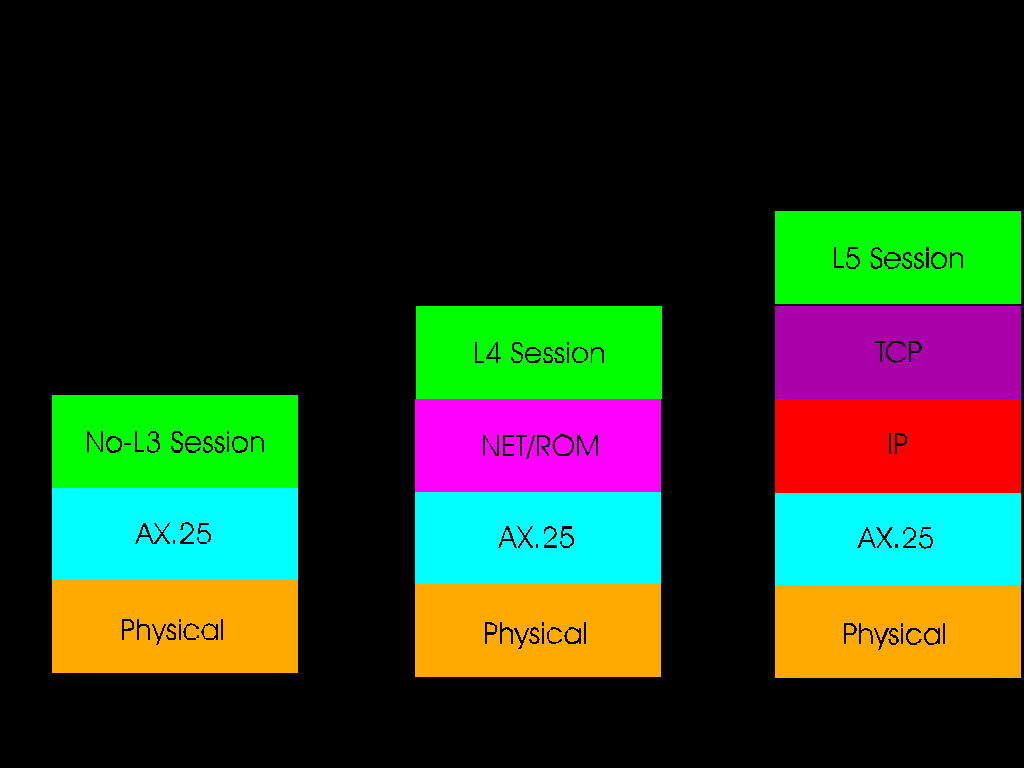
Routing and Quality: NET/ROM, as mentioned before, uses node names to build up its routing table. As more and more NET/ROM nodes pop up on a network and begin to exchange routing tables, there needs to be some kind of way of preventing a long path from being taken when a shorter path is possible. This is remedied by the quality metric associated with the port.
NET/ROM routing broadcasts emitted from a port will contain a quality, and any subsequent retransmissions of other routing tables will have some quality shaved off with each routing table emission from each node along a path.
NET/ROM Serial Protocol: When the original NET/ROM-capable TNC ROMs became available in the mid-80s, KISS mode was the de facto standard for driving TNCs; for efficiency reasons, several hams realized they could drop the AX.25 encapsulation and just carry NET/ROM packets to and from the TNC. This became known as the NRS protocol.
The RATS Open Systems Environment is a direct port of the X.25 PLP (Packet Layer Protocol) to run on top of AX.25. Like the original X.25 PLP, ROSE uses the standard 10-digit X.25 addressing scheme (frequently called X.121 addresses) and requires manual mapping of callsigns to network numbers. Like NET/ROM, full routing is permitted.
Unfortunately, ROSE was not very well-adopted; the Linux kernel's AX.25 stack contains the most complete implementation of ROSE, but even it is buggy and not worth running.
Despite many efforts to establish some alternate protocol as the dominant network protocol of the world, the ARPA Internet Protocol became the world standard; you probably used IP to get this document!
IP is very often seen alongside several other protocols riding on top of it:
The structure of an IP packet is as follows:
Figure 6. IPv4 and IPv6 Packets
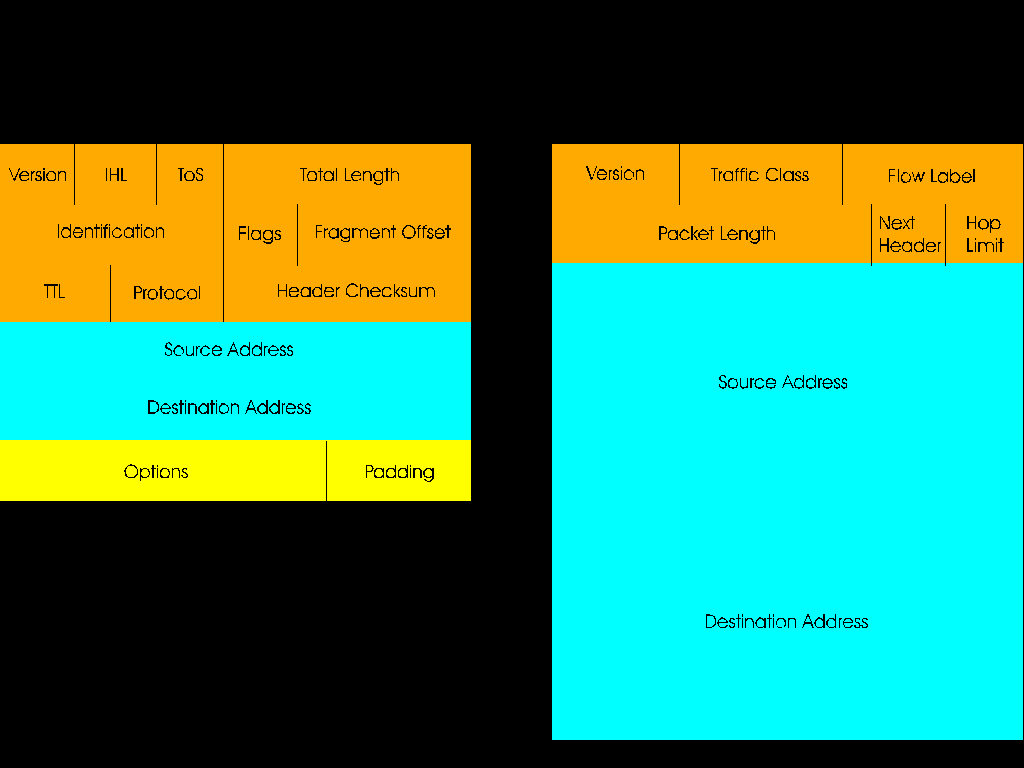
The source and destination IP addresses can be seen, as well as the protocol number, which will be discussed further down. The TTL (Time-to-Live) field specifies the amount of routing hops a packet can take before routers will stop routing it.
IPv4 and IPv6: Furthermore, there are two distinct versions of IP: IPv4 and IPv6: IPv6 was created to rectify the address-space-exhaustion issue IPv4 was facing in the late 90s. IPv4 addressing takes the form of four dotted-decimal octets (i.e. an eight-bit number; these run 0 to 255) -- for example, 44.192.15.221. IPv6 addresses, on the other hand, are much more complex (as they consist of eight hexadecimal 16-bit words, running 0000 to FFFF):
2062:41FE:653A:9882:511:FFE9:8392:412DNote that zeros are omitted from this IPv6 addressing scheme -- an address that has entire words of zeros can be abbreviated. Take the following example IPv6 address:
2062:41FE:653A:0000:0000:0000:8392:412DThis can be shortened down to:
2062:41FE:653A::8392:412D
Subnetting: Another important concept in IP networking are the important definitions of the host address, host address, broadcast address., and netmask. The host address is what you already saw before -- something like 192.168.9.21. For our example, let us say that the netmask is set to 255.255.255.0. Now, if you convert both the network address and netmask into binary, you can discover what the netmask does, what our network address is, and also our broadcast address. Examine this example to see that conversion:
192.168.9.21     11000000.10101000.00001001.00010101
255.255.255.0    11111111.11111111.11111111.00000000
When you examine this example, you can see that the subnet mask is completely overlaying all of the first three octets of that host address. If we zero out all the bits on the portion of the host address that aligns with the zeros in the netmask, you get the network address; likewise, if we set all of those bits to one, you get the broadcast address for that network. These addresses look like this:
192.168.9.21     11000000.10101000.00001001.00010101
255.255.255.0    11111111.11111111.11111111.00000000
192.168.9.0      11000000.10101000.00001001.00010000
192.168.9.255    11000000.10101000.00001001.11111111
Now, let's up the anté! How about if we use that same address, but we change the address to 255.255.255.128. We can now recompute the addresses:
192.168.9.21     11000000.10101000.00001001.00010101
255.255.255.128  11111111.11111111.11111111.10000000
192.168.9.0      11000000.10101000.00001001.00010000
192.168.9.127    11000000.10101000.00001001.01111111
Rather than writing out long netmasks, there is an abbreviation (colloquially called CIDR, pronounced "cider") that allows you to write the netmask by just noting the amount of bits in the netmask. Since the bit consumption of the netmask always marches left-to-right, with no zeros that have any ones to the right of the address (at least until the end), one can write "192.168.1.15 with a netmask of 255.255.255.0" as "192.168.1.15/24"!
IPv6 addressing follows the same scheme, except the examples are large enough to roll off the page!
| About subnetting |
|---|
|
The practice described above, subnetting, is used to divide networks into different segments. Otherwise, every host on the Internet would be on the same logical network, and a single broadcast packet would easily bring the worldwide network to it knees. The key thing to know here is that hosts who share different network addresses are no longer on the same network, and you must use a router to allow those hosts to communicate A router forwards packets between networks, facilitating the creation of the Internet. |
Link-Layer Address Resolution: A key part of both IPv4 and IPv6 is the concept of discovering what Ethernet MAC address/AX.25 callsign/PPP peer maps to an IP address. IPv4 does this with a protocol called ARP, the Address Resolution Protocol. IPv6 does this with the Neighbor Discovery subset of ICMPv6.
To understand ARP, examine this simple example of two hosts trying to communicate:
Substitute "Ethernet" for "AX.25" and the portion above would still read true.
Address Classes:
There is an important consideration to be had here: it is possible
to have an implicit netmask based on the range that the host
address falls into. This table shows the class, range, and implicit
netmask:
| Class | Range | Default Netmask |
| A | 0.0.0.0 - 127.255.255.255 | 255.0.0.0 |
| B | 128.0.0.0 - 191.255.255.255 | 255.255.0.0 |
| C | 192.0.0.0 - 223.255.255.255 | 255.255.255.0 |
| D | 224.0.0.0 - 239.255.255.255 | none, used for multicast |
| E | 240.0.0.0 - 255.255.255.255 | none, experimental |
Class D addresses are used for multicast, wherein one host can send a packet to several other hosts. This requires the medium to be able to handle broadcast packets (which Ethernet and Wi-Fi, the two most common link layer protocols that carry IP, support; so does AX.25) or a router capable of processing IGMP packets (Internet Group Management Protocol, which sets up multicast groups). Once a multicast group has been set up, any host can send packets directed to the multicast group address, and every host within that group will be able to receive those packets (so long as they are listening on the port desired).
TCP and UDP:
As mentioned before, TCP and UDP are the most
common protocols that run on top of IP (besides ICMP); these are the
protocols that applications actually use to transfer data between
hosts. Since it would not make sense to only allow one connection
between two hosts, TCP and UDP provide a port multiplexing
method wherein program listen on various port numbers; the other side,
which wishes to connect to a host listening on some port, simply opens
a connection to that port! Some ports are reserved for specific
application protocols; here are some common ports:
Table 2. Common TCP and UDP Ports
| Protocol | Application | Port Number |
| TCP | FTP | 20, 21 |
| TCP | SSH | 22 |
| TCP | Telnet | 23 |
| TCP | SMTP | 25 |
| TCP/UDP | DNS | 53 |
| UDP | DHCP/BOOTP | 67 |
| UDP | TFTP | 69 |
| TCP | HTTP | 80 |
| TCP | POP3 | 110 |
| UDP | NTP | 123 |
| TCP | IMAP4 | 143 |
| UDP | SNMP | 161 |
| TCP | HTTPS | 443 |
TCP and UDP themselves are identified in the IP packet through the
protocol number which follows the destination IP and source
IP; here are some common IP protocol numbers:
Table 3. Common IP Protocol Numbers
| Protocol | Description |
| 1 | ICMP |
| 2 | IGMP |
| 4 | IP-in-IP |
| 6 | TCP |
| 17 | UDP |
| 50 | IPsec ESP |
| 51 | IPsec AH |
| 93 | AX.25-in-IP |
| 94 | KA9Q IP-in-IP |
Tunnels: Since IPv4 is the dominant protocol on the internet, clever network engineers have sought to run protocols that did not win the standards race over the Internet -- this is accomplished in the form of a tunnel. For our purposes, we will be discussing AXIP tunnels, since we wish to join otherwise-disconnected packet radio networks over the internet -- examples for how to set this up on the various packet radio stacks will be provided below (contingent on support existing for them).
When you read the AX.25 Protocol Number list above, you probably saw TexNet on that list! This is a defunct protocol that is similar to NET/ROM, and was used for the Texas/Oklahoma/Arkansas packet network of the same name. Nearly all sites on TexNet were 9600 baud stations, in the mid-1980s! Needless to say, though it is defunct, its position in the development of NET/ROM is important to at least note.
Before we get too carried away, you're going to want to be using a Linux system that contains the following packages:
It is also recommended that you install these too for troubleshooting and debugging:
Some of this you'll probably need to compile yourself. Debian calls the node program "ax25-node" to avoid interfering with the NodeJS programming language runtime (see that footnote). Do note that libax25 requires the Linux kernel headers; these can be installed from most package repositories by installing a package called linux-headers (or something similar to that). Compiling these is as easy as finding the source code, extracting the archive, and compiling like so:
$ cd libax25
$ ./configure --prefix=/usr
$ make -j8
# make install          <--- note: requires root, prefix with sudo if necessary
$ cd ..
$ cd ax25-apps
$ ./configure --prefix=/usr
$ make -j8
# make install
$ cd ..
$ cd ax25-tools
$ ./configure --prefix=/usr
$ make -j8
# make install
$ cd ..
$ cd node               <--- note: UROnode compiles the same way
$ ./configure  --prefix=/usr
$ make -j8
# make install
$ cd ..
# ln -s /usr/etc/ax25 /etc/ax25
Note: these instructions are not entirely exact; if you are not passingly familiar with UNIX software installation and maintenance, I recommend you just use the packages available in your Linux distribution's package repository!
Linux has two ways of identifying AX.25 ports:
To define an AX.25 port, edit /etc/ax25/axports, and, use tabs for everything, not spaces:
# name callsign speed paclen window description
#----- -------- ----- ------ ------ -----------
radio  WA4XYZ-1 1200  256    7      Real TNC
Each field is as follows:
For NET/ROM ports, you want to edit /etc/ax25/nrports (again, use tabs instead of spaces):
# name callsign alias  paclen description
#----- -------- ------ ------ -----------
netrom WA4XYZ-7 EVIE1  236    NET/ROM Switch Port
Likewise, the fields are as follows:
You also need to define the port to the NET/ROM daemon (used to send and receive routing frames), so edit /etc/ax25/nrbroadcast:
# ax25_name min_obs def_qual worst_qual verbose
#---------- ------- -------- ---------- -------
radio       5       192      100        0
The fields are as follows:
For ROSE, edit /etc/ax25/rsports:
# name address     description
#----- ----------  -----------
rose   1000100002  ROSE Switch Port
The fields are as follows:
Starting Ports and Daemons: After you have defined all of those ports, you now need to start them. In this day and age, most Linux distributions do not automatically load the Linux kernel modules for packet radio, so load them yourself: 16
# modprobe ax25
# modprobe netrom
# modprobe rose
Once that has been done, you must now associate your TNC serial port with your interface name (note that you will not need to set the baud rate ahead of time) with kissattach:
# kissattach /dev/ttyS0 radio
If you are using a 6PACK TNC in lieu of a KISS TNC, you can use spattach or the -6 option of kissattach:
# kissattach -6 /dev/ttyS0 radio
# spattach /dev/ttyS0 radio
If your TNC requires CRC (Direwolf does, but that will be covered in a future section), enable it with this command:
# kissparms -c 1 -p radio
You now need to initialize your NET/ROM and ROSE ports:
# nrattach netrom
# rsattach rose
In order for NET/ROM to work, you must start its daemon:
# netromd -i -t 10
This transmits a routing table frame as soon as the program starts, and then every 10 minutes after that.
In order to build up a list of heard AX.25 stations (which can be accessed with the mheard command later), run this daemon:
# mheardd
IPv4 over AX.25 will be discussed later.
Making Connections: By the time you have completed the above commands, you should have several interfaces added to the output of the ifconfig command; invoke it and see for yourself: 17
ax0: flags=67<UP,BROADCAST,RUNNING>  mtu 256
        ax25 WA4XYZ-1  txqueuelen 10  (AMPR AX.25)
        RX packets 919130  bytes 52973823 (50.5 MiB)
        RX errors 0  dropped 0  overruns 0  frame 0
        TX packets 1791658  bytes 235437942 (224.5 MiB)
        TX errors 0  dropped 0 overruns 0  carrier 0  collisions 0

nr0: flags=193<UP,RUNNING,NOARP>  mtu 255
        netrom WA4XYZ-7  txqueuelen 1000  (AMPR NET/ROM)
        RX packets 0  bytes 0 (0.0 B)
        RX errors 0  dropped 0  overruns 0  frame 0
        TX packets 0  bytes 0 (0.0 B)
        TX errors 264196  dropped 0 overruns 0  carrier 0  collisions 0

rose0: flags=193<UP,RUNNING,NOARP>  mtu 128
        rose 1000100002  txqueuelen 1000  (AMPR ROSE)
        RX packets 0  bytes 0 (0.0 B)
        RX errors 0  dropped 0  overruns 0  frame 0
        TX packets 264196  bytes 8454272 (8.0 MiB)
        TX errors 0  dropped 0 overruns 0  carrier 0  collisions 0
The callsigns can be seen on the ports, which is correct.
Now, to open a connection to another node, do so with the call command:
$ call radio n4abc-10
This will start a fullscreen program that allows you to have a basic textual conversation with another user's terminal, packet node, packet BBS, or some other such thing -- it depends on how they have their node configured and what it is listening for. To escape from a session, enter a tilde, followed by a period, then strike Enter. 18
To make a NET/ROM connection, use a similar command:
$ call netrom NYBBS
To make a ROSE connection, use this:
$ call rose AA4XY 1019542251
Listening and Beaconing: Inevitably, you will want to discover adjacent NET/ROM nodes, listen for AX.25 packets on the air, and send out beacons. To discover adjacent NET/ROM nodes, run these two commands:
$ cat /proc/net/nr_nodes
$ cat /proc/net/nr_neigh
If you want to listen for AX.25 packets on all interfaces, run this:
# listen -c -a
If you wish to view a list of stations you have heard so far, invoke this (note: if you are tuned to the APRS frequency, you may get hundreds of lines of output in a busy city):
$ mheard
To send out a beacon announcing your presence, you can do so by transmitting AX.25 UI-frames on a fixed timer (this transmits it on the AX.25 port named radio):
$ beacon -t 10 radio "WA4XYZ Packet Radio Node"
While connected, you can use netstat to get information about active connections:
$ netstat --ax25
$ netstat --netrom
$ netstat --rose
IP is heavily used on packet radio networks in places where advanced packet adoption is high, so it is best to familiarize oneself with it. Please note that the IP addresses used here are non-global, not unique on the internet, and you should probably go get some IP addresses that start with 44 (which you can discover how to do after some brief internet searches). Alas, let us construct a sample example with LAN addresses.
Before going further, you should assign an IP address to your AX.25 interface:
# ifconfig ax0 192.168.44.100
Note that ax0 corresponds to the AX.25 port named radio, and you can make this association by observing the output from the kissattach command.
Rather than having to retroactively assign the IP address using the ifconfig command, you can actually specify it as the last argument to the kissattach command:
# kissattach /dev/ttyS0 radio 192.168.44.100
At this point, you should be able to ping other hosts. It is recommend that you send one ping at a time, though, as to not overwhelm the frequency with packets every second:
$ ping -c 1 192.168.44.125
When this ping command starts, it will emit ARP packets (just like described in the IP intro section before); when the other node replies, IP commuication can start.
Telnet Daemon: Note that you should not use encrypted protocols, like SSH, over AX.25; instead, use Telnet. To start a Telnet server and permit remote login into your node (which is a security risk), continue reading.
To run a Telnet server on a Linux system with systemd installed (which is most of them), install inetutils and run this command:
# systemctl start telnet@.socket
To run a Telnet server without the aid of systemd and instead use the inetd program included in inetutils, edit /etc/inetd.conf and add in the following line:
telnet  stream  tcp   nowait  root  /usr/libexec/telnetd telnetd
telnet  stream  tcp6  nowait  root  /usr/libexec/telnetd telnetd
At this point, invoke inetd:
# /usr/libexec/inetd
Note for Arch Linux users: if you are using Arch Linux and running inetd to run a telnet server (in lieu of having systemd control the socket), you need to replace the /usr/libexec/telnetd command invocation in inetd.conf with the following: 19
telnetd --exec-login=/usr/bin/login
Alternatively, if you wish to use xinetd in lieu of traditional inetd, edit /etc/xinetd.conf and make sure this is in here: 20
service telnet {
    flags          = REUSE
    socket_type    = STREAM
    wait           = no
    user           = root
    server         = /usr/libexec/telnetd
    server_args    = --exec-login=/usr/bin/login
    log_on_failure += USERID
    disable        = no
}
You can start xinetd by simply typing xinetd on the command line. Note that the Arch Linux fix has already been applied here.
To make a Telnet connection, simply type something like this:
$ telnet 192.168.44.95
Note that when the connection opens, you will see the remote system's login prompt; you do not directly specify the username on the command line.
Routing - Basic: If you have two networks, say 192.168.1.0/24 and192.168.44.0/24 (the packet radio "LAN" used in the above example). If we wish to route between these two networks, two things need to happen:
Examine the following diagram of the setup:
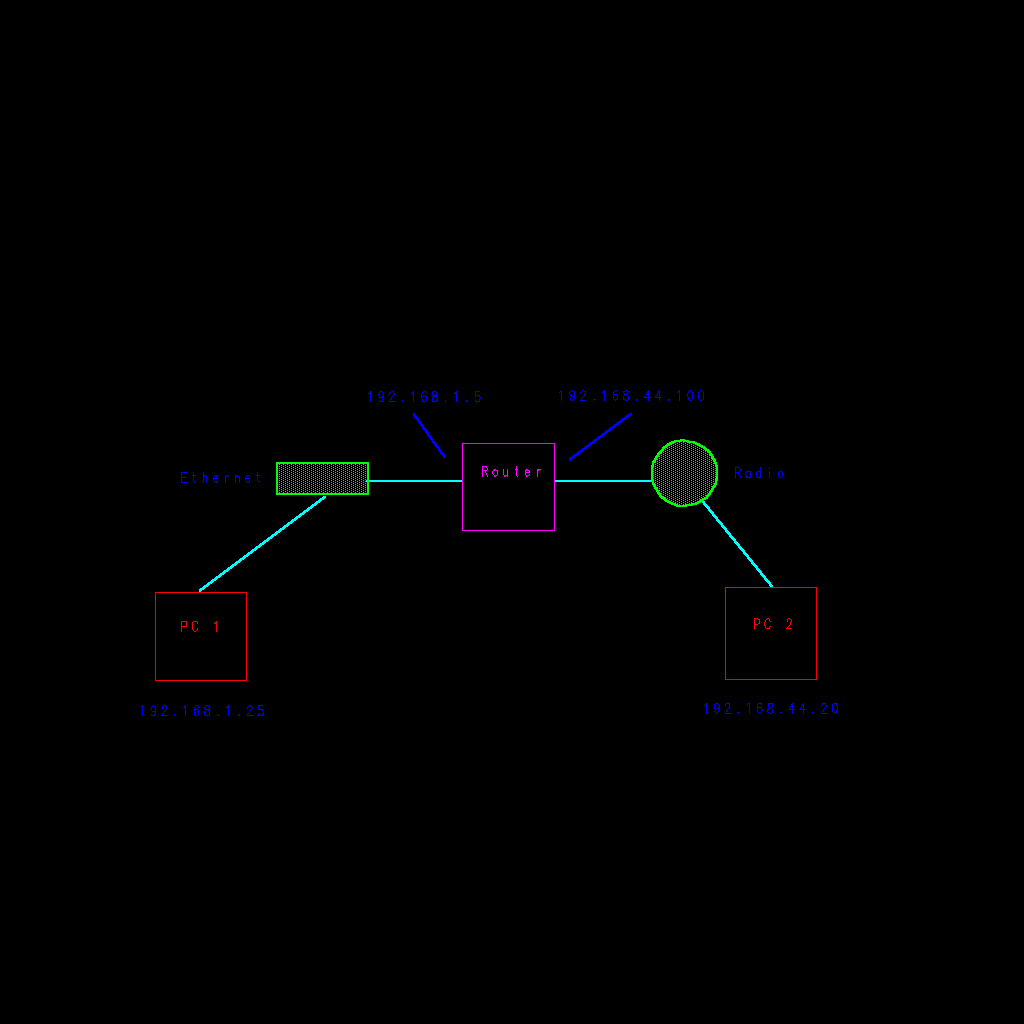
For PC 1 to reach PC 2, it must pass the packets through the routing node. First, you must engage IP forwarding (routing) on the packet node:
# echo 1 > /proc/sys/net/ipv4/conf/all/forwarding
Now, we have to populate routing tables. For this to be done, you should first check the output from ifconfig on the packet node:
eth0: flags=4675<UP,BROADCAST,RUNNING,ALLMULTI,MULTICAST>  mtu 1500
        inet 192.168.1.5  netmask 255.255.255.0  broadcast 192.168.1.25
        ether aa:00:04:00:07:04  txqueuelen 1000  (Ethernet)
        RX packets 310597188  bytes 69593025608 (64.8 GiB)
        RX errors 0  dropped 4673197  overruns 0  frame 0
        TX packets 28622761  bytes 3296809890 (3.0 GiB)
        TX errors 0  dropped 0 overruns 0  carrier 0  collisions 0

ax0: flags=67<UP,BROADCAST,RUNNING>  mtu 256
        inet 192.168.44.100 netmask 255.255.255.0  broadcast 192.168.100.25
        ax25 WA4XYZ-1  txqueuelen 10  (AMPR AX.25)
        RX packets 919130  bytes 52973823 (50.5 MiB)
        RX errors 0  dropped 0  overruns 0  frame 0
        TX packets 1791658  bytes 235437942 (224.5 MiB)
        TX errors 0  dropped 0 overruns 0  carrier 0  collisions 0
First, you need to tell PC 1 how to reach the packet radio subnet (which, naturally, includes PC 2):
# route add -net 192.168.44.0/24 gw 192.168.1.5
Remember, 192.168.1.5 is the Ethernet port on the packet node!
Likewise, you need to provide PC 2 with a routing table entry. This consists of:
# route add -net 192.168.1.0/24 gw 192.168.44.100
Now, you can execute ping commands (or anything else that uses TCP/IP) and route between the two networks!
Routing - NAT: If you wish to access the Internet via packet radio, you will need to employ NAT (Network Address Translation) routing. 21
Examine the following image to visualize the setup:
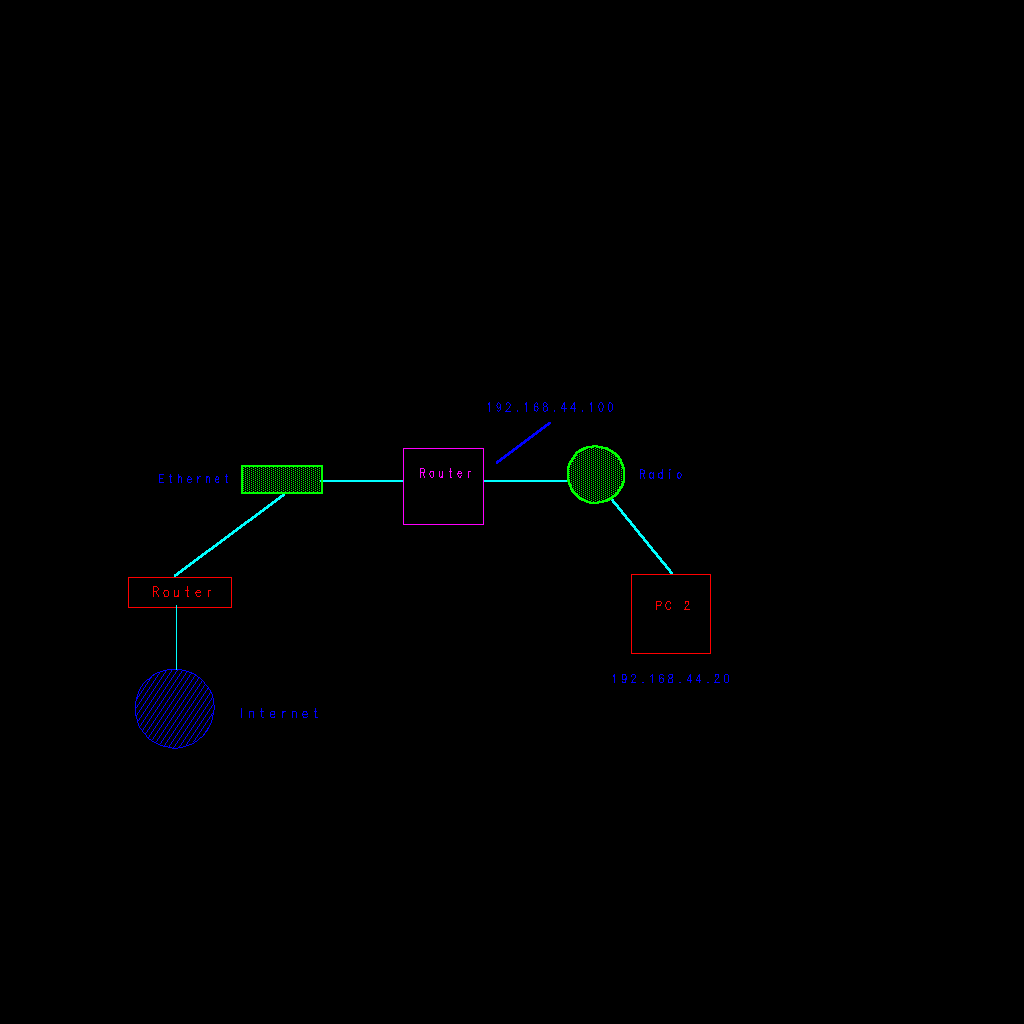
Note that the IP addresses on the Ethernet subnet are no longer shown -- they are no longer significant. Instead, what matters most is the packet radio subnet. Now, enter the following commands on the packet node to engage NAT routing, then I will explain what is going on and why.
# iptables -t nat -a POSTROUTING -o eth0 -j MASQUERADE
# iptables -A FORWARD -i eth0 -o ax0 -m state --state RELATED,ESTABLISHED -j ACCEPT
# iptables -A FORWARD -i ax0 -o eth0 -j ACCEPT
So, what's going on here? Well, whenever a host on the packet radio subnet sends packets directed at the Internet, they will be transmitting them to the packet routing node. It will then modify the packet's source and destination address such that the packets look like they are coming from the packet routing node PC; at the same time, the router attached to the internet connection and Ethernet LAN does the same thing. 22
If you wish to run packet radio protocols in the gigabits range, the BPQ Ethernet driver is your friend. The BPQETHER allows you to encapsulate AX.25 frames (and, by extension, NET/ROM, ROSE, FlexNet, IP, and such) over Ethernet (and, with some modification, Wi-Fi). This provides a high-speed backbone and testing environment over Ethernet LANs; non-Ethernet connections (T1 lines, synchronous serial links, dialup links) will want to use an AXIP or AXUDP tunnel (which will be documented later).
Before this can work, you must first ensure that the Ethernet device name has not been "renamed" by something; in other words, the network interface is named eth0. To do this, you will need to pass a kernel parameter to the kernel; this can be done by editing the GRUB/ELILO/Limine configuration. How to do this is out-of-scope for this document, but you will need to pass the following parameter: net.ifnames=0
Once that change has been made, you will need to enter another port into /etc/ax25/axports like so:
# name callsign speed paclen window description
#----- -------- ----- ------ ------ -----------
radio  WA4XYZ-1 1200  256    7      Real TNC
bpq    WA4XYZ-5 19200 1024   7      BPQETHER Port
There is no kissattach command to run here, as we can directly use the port after assigning the address to the bpq0 device:
# ifconfig bpq0 hw ax25 WA4XYZ-5 up
When this has been done, the call command will read/etc/ax25/axports to resolve the port name to its associated callsign -- after this is done, the connection opens.
It is also possible to enable that port for NET/ROM, simply by editing /etc/ax25/nrbroadcast:
# ax25_name min_obs def_qual worst_qual verbose
#---------- ------- -------- ---------- -------
radio       5       192      100        0
bpq         5       192      100        0
It is not necessary to update the ROSE configuration.
Sometimes, it is necessary to bridge a packet radio network over the Internet (or some other network link that speaks TCP/IP natively, and does not natively support AX.25). In order to do this, one can construct an AX/IP tunnel -- this encapsulates the AX.25 frames into IPv4 packets. Likewise, to encapsulate TCP/IP into UDP packets, one can create an AX/UDP tunnel. 23
Before creating an AX/IP or AX/UDP tunnel, it is necessary to understand the differences between AX/IP and AX/UDP in detail:
The program that controls this tunnel is ax25ipd, and it has two operating modes (IP and UDP, as mentioned before). The configuration file is located at /etc/ax25/ax25ipd.conf -- start with a sample like this for AX/IP mode:
# Socket type:
socket ip

# Use mode "tnc" or "digi"
mode tnc

# Beaconing
beacon after 600
btext YOUR BEACON TEXT HERE

# Use the PTY device created with socat
device /dev/ttyS30

# Line speed
speed 115200

# Log level, 0 to 4 (4 being the highest)
loglevel 0

# Broadcast ourselves?
broadcast QST NODES

# AX/IP connections go here
route NH6AB-2 12.34.56.78
Likewise, for an AX/UDP tunnel, start with this:
# Socket type:
socket udp

# Use mode "tnc" or "digi"
mode tnc

# Beaconing
beacon after 600
btext YOUR BEACON TEXT HERE

# Use the PTY device created with socat
device /dev/ttyS30

# Line speed
speed 115200

# Log level, 0 to 4 (4 being the highest)
loglevel 0

# Broadcast ourselves?
broadcast QST NODES

# AX/IP connections go here
route NH6AB-1 12.34.56.78 udp 10093
Now, one may wish to emit broadcasts on a tunnel, and/or also provide a default route on that interface. This can be done with the b and d letters appended to the end of the route lines. For example, to set a link as both broadcast-capable (in other words, for to make NET/ROM work) and a default route:
route NH6AB-1 12.34.56.78 udp 10093 b d
As you might imagine, you must also enter this into /etc/ax25/axports, like so:
# name callsign speed paclen window description
#----- -------- ----- ------ ------ -----------
radio  WA4XYZ-1 1200  256    7      Real TNC
bpq    WA4XYZ-5 19200 1024   7      BPQETHER Port
axip   WA4XYZ-3 19200 1024   7      AX/IP Port
Likewise, edit /etc/ax25/nrbroadcast to make the port elegible for NET/ROM communication:
# ax25_name min_obs def_qual worst_qual verbose
#---------- ------- -------- ---------- -------
radio       5       192      100        0
bpq         5       192      100        0
axip        5       192      100        0
Once you have defined the axports entry, you can now create the fake serial port used to allow ax25ipd to communicate with the Linux kernel; the socat program does this:
# socat -d -d PTY,link=/dev/ttyS30 PTY,link=/dev/ttyS31
Now that socat is running, you can now start the daemon:
# ax25ipd
Inevitably, in the construction of a packet radio network, you will find it necessary to allow some packet nodes to communicate with your node. This can be in the form of two different methods:
This guide will cover the setup of both listed options.
Configuring ax25d: Before you can accept any inbound connections, you will need to configure a program called ax25d. 24 Configuration is relatively simple, and is done by editing the /etc/ax25/ax25d.conf configuration file. If you are familiar with configuring inetd, ax25d is intended to be somewhat analogous to that. Examine the following sample configuration file:
[WA4XYZ-1 VIA radio]
NOCALL   * * * * * *  L
default  * * * * * *  - root  /usr/local/bin/node   node
#
[WA4XYZ-5 VIA bpq]
NOCALL   * * * * * *  L
default  * * * * * *  - root  /usr/local/bin/node   node
#
[WA4XYZ-3 VIA axip]
NOCALL   * * * * * *  L
default  * * * * * *  - root  /usr/local/bin/node   node
#
<netrom>
NOCALL   * * * * * *  L
default  * * * * * *  - root  /usr/local/bin/node   node
#
{* via rose}
NOCALL  * * * * * *  L
default * * * * * *  -  root  /usr/local/bin/node   node
In the above example, the node program is being invoked -- this is an example of case 2 on the above list. Substituting some other program name will result in that program being invoked.
Note also that this program can accept AX.25, NET/ROM, and ROSE connections.
Configuring the Node Program: Node is a basic packet radio shell program, allowing inbound users to run commands of their choosing. The base program is not very feature-rich, so adding custom commands is highly recommended.
The configuration file is located at /etc/ax25/node.conf -- consult the following example:
# Idle timeout (seconds).
IdleTimeout     900

# Timeout when gatewaying (seconds).
ConnTimeout     14400

# Visible hostname. Will be shown at telnet login.
HostName        my.host.name

# Node ID.
NodeId          WA4XYZ-1

# ReConnect flag.
ReConnect       on

# "Local" network.
LocalNet        192.168.1.0/24

# Hidden ports.
#HiddenPorts    2

# Netrom port name. This port is used for outgoing netrom connects.
NrPort          netrom

# Logging level
LogLevel        3

# The escape character (CTRL-T)
# Use this to return to the node if a telnet connection or comma
d fails or hangs.
EscapeChar      &hat.T

# Resolve IP numbers to DNS addresses?
ResolveAddrs    on

# Node prompt.
NodePrompt      "WA4XYZ-1>"
Before starting node, you must also configure some account permissions. To do that, edit /etc/ax25/node.perms:
# user  type    port    passwd  perms
# Default permissions per connection type.
# 63 means they can connect out to any host through telnet.
*       ax25    *       *       63
*       netrom  *       *       63
*       local   *       *       63
*       ampr    *       *       63
*       inet    *       *       63
*       host    *       *       63
| A Word on Node Security |
|---|
|
Giving inet users (i.e. users that connected to the node through Telnet) access to telnet out to any other host on the Internet is a risky move. A clever attacker (though unlikely) could use this as a way to frame you for all manner of denial-of-service attacks! |
Now that user permissions have been set, you now should edit the MOTD (Message of The Day) file to configure the banner users will see when connecting to the node. Edit /etc/ax25/node.motd:
This is John Smith's Super Duper Cool Packet Radio Node!

Type ? for a list of commands. help <commandname> gives a
description of the named command.
Assuming that you have configured the node correctly this far, the only thing that is required to start the program is actually to start ax25d:
# ax25d
After testing the node, you will likely want to define some custom commands to make the node do something useful. The command syntax consists of the following elements:
For some cooked examples, see the below lines:
ExtCmd PS 1 nobody /bin/ps ps ax
ExtCmd PMS 3 root /usr/sbin/pms pms
You can also allow TCP Node connections by allowing users to connect via the Telnet protocol. This is done by adding a line to /etc/inetd.conf just like before for the standard Telnet daemon:
node    stream  tcp   nowait  root  /usr/bin/node node
node    stream  tcp6  nowait  root  /usr/bin/node node
However, before restarting inetd, you must also update /etc/services: 25
node 3694/tcp
If you are using xinetd instead, the configuration is similar (but does still require the /etc/services fix)
service node {
    flags          = REUSE
    socket_type    = STREAM
    wait           = no
    user           = root
    server         = /usr/bin/node
    log_on_failure += USERID
    disable        = no
}
If you are using systemd, you will need to edit two files:
[Unit]
Description=Packet Radio Node

[Socket]
ListenStream=3694
Accept=true

[Install]
WantedBy=sockets.target
[Unit]
Description=Node Server
After=local-fs.target

[Service]
ExecStart=-/usr/sbin/uronode
StandardInput=socket
To apply these changes, invoke the following two commands:
# systemctl daemon-reload
# systemctl start node.socket
Using UROnode Instead of Node: For the most part, it is highly recommended that you use UROnode in lieu of traditional Node; not only does UROnode have more functionality, but it is more secure.
Compilation and installation is relatively simple; at the time of this document's composition, UROnode can be found on GitHub after a quick Internet search -- if this information no longer applies in the future, it should surely still be findable!
However, there are some things that should be noted. By default, the October 2021 version of UROnode deposits all files into the /usr/local prefix -- you can fix this by running the following commands to compile UROnode:
$ export ETC_DIR=/etc
$ export SBIN_DIR=/usr/sbin
$ export BIN_DIR=/usr/bin
$ export LIB_DIR=/usr/lib
$ export DATA_DIR=/usr/share
$ export MAN_DIR=/usr/share/man
$ export VAR_DIR=/var/lib/ax25
$ ./configure
<say no to interactive mode>
$ make -j4
# make install
Now that UROnode has been installed, it must now be configured. Since UROnode is a fork of Classic Node, editing /etc/ax25/uronode.conf is relatively simple! Note that you must also edit these files; check them off as you go:
Note that you can also edit inetd, xinetd, or systemd's configuration to allow TCP connections to UROnode; simply replace node with uronode and it should work!
If you wish to build an APRS digipeater or I-Gate with the Linux AX.25 stack, you have several options:
Since this manual portion is present amongst the Linux AX.25 setup, let us examine aprx!
Compilation: Compiling aprx is relatively simple:
sh configure
make -j4
sudo mkdir /usr/local/aprx
sudo cp aprx /usr/local/aprx
sudo cp aprx.8 /usr/local/aprx
Bidirectional I-Gate Configuration: APRS I-Gates that can transmit are a rather rare commodity in the world of amateur radio. As such, you should probaby try to build one! Start editing /usr/local/aprx/aprx.conf:
mycall N0CALL-10
myloc lat 3639.50N lon 08724.50W

<aprsis>
    passcode 12345
    server noam.aprs2.net
    filter "m/25"
</aprsis>

<logging>
    pidfile /usr/local/aprx/aprx.pid
    rflog /usr/local/aprx/aprx-rf.log
    aprxlog /usr/local/aprx/aprx.log
    #dprslog /usr/local/aprx/dprs.log
    #erlangfile /usr/local/aprx/aprx.state
</logging>

<interface>
   ax25-device        $mycall
   tx-ok              true
   telem-to-is        true
</interface>

<beacon>
    beaconmode both
    cycle-size 20m
    beacon object "N0CALL-10" symbol "I#" lat "1234.50N" lon "01234.50W"
         comment "N0CALL TXing I-Gate and Digi"
    beacon raw ")123456zThis is aprx 2.9.1"
</beacon>

<telemetry>
    transmitter       $mycall
    via               TRACE1-1
    source            $mycall
</telemetry>

<digipeater>
    transmitter       $mycall

    <source>
       source         $mycall
       relay-type     digipeated
       viscous-delay  0
       ratelimit      60 120
       filter         t/poimqstunw
    </source>

    <source>
       source         APRSIS
       relay-type     third-party
       viscous-delay  0
       ratelimit      60 120
       via-path       WIDE1-1
       msg-path       WIDE1-1
       filter         t/poimqstunw
    </source>
</digipeater>
If you don't have a real TNC (or don't want to use it), Dire Wolf is a software TNC that works marvels; WB2OSZ did a wonderful job writing it!
Compiling and Installation: To install this wonderful program, follow the compilation directions on the GitHub page. I highly recommend that you compile it yourself, to ensure that you are getting the latest version!
Of interest is the support for CM108 USB sound card keying through its GPIO pins -- the CM108 is a cheap USB sound card famously known for the availability of some extra GPIO pins on its controller, and these can be used to key the radio.
Configuration: Here is a basic config file for your viewing pleasure, usually located at /usr/local/share/doc/direwolf/conf/direwolf.conf (unless you did not install Dire Wolf from the source code). Ensure the configuration file contains the following elements:
ADEVICE soundhw:4.0
CHANNEL 0
MYCALL WA4XYZ-1
MODEM 1200
ARATE 48000
DTMF
TXDELAY 5
TXTAIL 5
FULLDUP OFF
PTT /dev/ttyUSB0 RTS
AGWPORT 8000
KISSPORT 8001
Breaking down the config file, the configuration statements are as follows:
After configuring Dire Wolf, start it with this command:
# direwolf -p
This will cause Dire Wolf to start, and it will create a KISS TNC PTY device at /tmp/kisstnc You can then run kissattach on that port, provided that you enter the port into /etc/ax25/axports as follows:
# name callsign speed paclen window description
#----- -------- ----- ------ ------ -----------
radio  WA4XYZ-1 1200  256    7      Real TNC
radio2 WA4XYZ-3 1200  256    7      Dire Wolf
Don't forget to enter it into /etc/ax25/nrports and start the rest of the packet stack.
Important! You need to run kissparms -c 1 -p <Dire Wolf port name> before trying to make any connections with any of the user programs!
The following table provides a list of programs, their associated
package, and a brief description:
Table 4. Linux Packet Programs
| Command | Package | Description |
| mheard | ax25-tools | List AX.25 callsigns recently heard over some given timeframe |
| ax25d | ax25-tools | Listen for and accept AX.25, NET/ROM, and ROSE connections |
| axctl | ax25-tools | Configure or kill active AX.25 connections |
| axparms | ax25-tools | Manipulate the kernel UID/callsign mapping table |
| axspawn | ax25-tools | Provide automatic AX.25 login and possibly create accounts |
| beacon | ax25-tools | Periodically broadcast a beacon on a port |
| bpqparms | ax25-tools | Change what MAC address the BPQETHER driver uses |
| mheardd | ax25-tools | Listen for AX.25 stations and populate the mheard list |
| rxecho | ax25-tools | "Dummy routing"/bridging between two AX.25 ports |
| sethdlc | ax25-tools | Alter settings for an HDLC-based port |
| smmixer | ax25-tools | Change volume levels for the in-kernel soundcard softmodem |
| smdiag | ax25-tools | Display status and modulation diagram for soundcard modem driver |
| kissattach | ax25-tools | Attach serial KISS or 6PACK interface |
| kissnetd | ax25-tools | Allocate several PTYs and emulate a KISS network (or use multiple serial ports) |
| kissparms | ax25-tools | Alter KISS TNC settings (TX delay/tail, CRC, etc) |
| net2kiss | ax25-tools | Directly output AX.25 packets from an interface on a serial port |
| mkiss | ax25-tools | Operate a multi-port KISS TNC with one serial port |
| nodesave | ax25-tools | Write NET/ROM routing table to a shell script for running later |
| nrattach | ax25-tools | Attach NET/ROM port |
| nrparms | ax25-tools | Configure NET/ROM nodes, aliases, and routes |
| nrsdrv | ax25-tools | Use a NET/ROM Serial Protocol TNC with kissattach (via a PTY) |
| netromd | ax25-tools | Send and receive NET/ROM routing table broadcasts |
| rsattach | ax25-tools | Attach ROSE port |
| rsuplnk | ax25-tools | Accept AX.25 connections and dump packets into a ROSE net |
| rsdwnlnk | ax25-tools | Accept ROSE packets and dump into an AX.25 host |
| rsparms | ax25-tools | Configure ROSE nodes and routes |
| ttylinkd | ax25-tools | TTYLink daemon (AX.25, NET/ROM, ROSE, TCP) |
| rip98d | ax25-tools | Send and receive RIP98 routing messages for IP networks |
| ax25_call | ax25-tools | Make AX.25 conection |
| netrom_call | ax25-tools | Make NET/ROM conection |
| rose_call | ax25-tools | Make ROSE conection |
| tcp_call | ax25-tools | Make TCP5 conection |
| yamcfg | ax25-tools | Configure YAM interface |
| dmascc_cfg | ax25-tools | Configure PI2, PackeTwin, and other DMASCC devices |
| ax25ipd | ax25-apps | AX/IP and AX/UDP tunnel manager |
| a25rtd | ax25-apps | AX.25 routing daemon |
| ax25rtctl | ax25-apps | ax25rtd control program |
| call | ax25-apps | Make AX.25, NET/ROM, or ROSE connections |
| listen | ax25-apps | Monitor AX.25, NET/ROM, ROSE, and IP traffic on an AX.25 port |
| soundmodem | soundmodem | Soundcard AX.25 modem driver program (SoundBlaster) |
| soundmodemconfig | soundmodem | Configure soundcard modem driver |
| baycom | baycom | Drive Baycom modem by manipulating the 8250 UART chip |
| aprsd | aprsd | Original APRS daemon |
| aprspass | aprsd | Compute APRS-IS access passcode |
| aprsdigi | aprsdigi | Original APRS digipeater |
| aprsmon | aprsdigi | aprsdigi monitor tool |
| aprx | aprx | Improved APRS digipeater and i-gate |
| aprx-mon | aprx | aprx monitor tool |
| node | ax25-apps | AX.25, NET/ROM, ROSE, and TCP packet radio shell program |
| uronode | uronode | Improved version of classic node |
| linpac | linpac | Advanced packet radio shell program |
NOTE: before proceeding with this, install all of the optional programs listed at the beginning of the Linux AX.25 section!
KA9Q NOS was a packet radio stack for MS-DOS PCs that saw tremendous popularity in the late 80s and early 90s; its creator, Phil Karn, included the source code with every release. Since NOS was open-source, many amateurs ported it and made it available on a number of operating systems:
Alas, NET/NOS (as it became to be known) quickly found itself obsolete and many forks emerged. One of those were TNOS, the Tampa Network Operating System. Running up until about 2004 or so, TNOS introduced many new features and was ported to run on the new and popular Linux system, something I am sure you are passingly familiar with. In October 2004, VE4KLM (Maiko Langelaar) combined the JNOS 1.11F release (itself an updated NET/NOS port that continued to run on MS-DOS, maintained by N5KNX, James Dugal, until 1996) with the portability improvements of TNOS 2.40. JNOS 2 was Linux-native, could work on other OSes (including BSD), and even gained IPv6 support!
Despite there being many NOSes, this guide will cover configuring JNOS 2 first. Before beginning, it is helpful to familiarize oneself with the features this stack has:
To actually compile JNOS, you need to retrieve the source code from VE4KLM's website: 30
$ rsync -a www.langelaar.net::official jnos
You now need to configure the program:
$ cd jnos
$ ./configure
$ make -j8
# mkdir /jnos
# cp -rv jnos jnospwmgr usage /jnos
With that last command being ran, JNOS has been installed. You may now proceed to configuration.
Advanced Configuration: If you wish to manually maniplate the configuration file for the features baked into JNOS, you may edit config.h in the JNOS source directory. To turn on a config option, ensure #define is present on the line; #undef disables an option. For example:
#define NETROMSESSION
This option is enabled.
JNOS is configured by editing the autoexec.nos file present in the JNOS program working directory; in this example, it will be present at /jnos/autoexec.nos. This file contains a series of commands that are ran at startup, so any JNOS command that you type in during JNOS's execution may be ran at startup (provided that you key it in). 31
Rather than providing a long and linear autoexec.nos file as a sample, I find it better to slowly start creating one (and, don't worry, the entire example will be available at the end).
First, we should enable logging and set the escape key to something easy:
log on
escape !
We can optimize our TCP settings for a radio link, since we will be running TCP/IP over AX.25:
tcp mss 216
tcp window 4096
tcp timert linear
tcp irtt 5000
tcp maxw 9000
tcp bl 2
tcp ret 12
tcp syn on
tcp maxwait 30000
tcp retries 5
We likely want to respond to pings:
icmp echo on
icmp trace 2
Set the IP TTL to something decent:
ip ttl 225
ip rt 4
Set our default IP address, DNS hostname, and callsign:
ip address 203.0.113.25
hostname jnos2.wa4xyz.radio
ax25 mycall WA4XYZ-3
Linux allows us to attach a "tunnel" device, allowing JNOS to talk directly to the Linux kernel's TCP/IP stack without the aid of a simulated KISS tunnel: 32
attach tun tun0 1500 0
ifconfig tun0 ipaddress 192.168.48.2
ifconfig tun0 netmask 0xffffff00
ifconfig tun0 mtu 1500
# Give it a chance to come up
pause 1
# This runs a command on the host to initialize the tunnel device:
shell ifconfig tun0 192.168.48.1 pointopoint 192.168.48.2 mtu 1500 u
If you are using a KISS TNC on the first COM port, ttyS0:
attach asy ttyS0 - ax25 ax0 4096 256 9600
ifconfig ax0 description "KISS TNC"
ifconfig ax0 ax25 irtt 1000
ifconfig ax0 ax25 t2 100
ifconfig ax0 ax25 t3 60000
ifconfig ax0 ax25 t4 120
ifconfig ax0 ax25 paclen 256
ifconfig ax0 ax25 window 16384
ifconfig ax0 ax25 maxframe 4
ifconfig ax0 ax25 maxwait 10000
ifconfig ax0 mtu 256
ifconfig ax0 ipaddr 203.0.113.25
ifconfig ax0 netmask 0xffffff00
ifconfig ax0 broadcast 203.0.113.255
mode ax0 datagram
If you wish to have a cross-connection to the Linux AX.25 stack, enter these commands (note that the IP address on this subnet is 198.18.44.0/24):
attach asy ttyS32 - ax25 ax1 4096 256 9600
ifconfig ax1 description "KISS PTY emulation"
ifconfig ax1 ax25 irtt 1000
ifconfig ax1 ax25 t2 100
ifconfig ax1 ax25 t3 60000
ifconfig ax1 ax25 t4 120
ifconfig ax1 ax25 paclen 256
ifconfig ax1 ax25 window 16384
ifconfig ax1 ax25 maxframe 4
ifconfig ax1 ax25 maxwait 10000
ifconfig ax1 mtu 256
ifconfig ax1 ipaddr 198.18.44.5
ifconfig ax1 netmask 0xffffff00
ifconfig ax1 broadcast 198.18.44.255
mode ax1 datagram
Since we are doing TCP/IP over AX.25, we need to add two routes: one for our tunnel device and one for our TNC: 33
route add 203.0.113.0/24 ax0 direct 5
route add 198.18.44.0/24 ax1 direct 5
# The following IP address is our router's IP:
route add default tun0 192.168.1.1
Configure a DNS server:
domain addserver 192.168.1.110
Set up some AX.25 beacons:
ax25 bctext "JNOS/Linux"
ax25 bcinterval 600
ax25 bcport ax0
ax25 bcport ax1
Turn on ARP polling, such that your machine can network with other IP/AX.25 hosts:
# ARP functions:
arp eaves tun0 on
arp eaves ax0 onn
arp eaves ax1 onn
arp eaves encap on
# ARP polling:
arp poll tun0 on
arp poll ax0 onn
arp poll ax1 onn
arp poll encap on
arp maxq 10
Set some AX.25 parameters to increase performance:
ax25 maxf 2
ax25 timert linear
ax25 version 2
ax25 win 2048
ax25 pacl 128
ax25 bcinterval 600
ax25 ret 12
ax25 irtt 2500
ax25 maxw 7000
ax25 blimit 3
ax25 hsize 50
Turn on the "heard list" list to keep track of stations:
ax25 heard ax0
ax25 hport ax0 on
ax25 heard ax1
ax25 hport ax1 on
Start configuring NET/ROM, and make a provision for running TCP over NET/ROM:
attach netrom
netrom alias JNOSXX
netrom call WA4XYZ-8
netrom interface ax0 192 143
netrom interface ax1 192 143
ifconfig netrom tcp blimit 3
ifconfig netrom tcp irtt 300000
ifconfig netrom tcp maxwait 900000
ifconfig netrom tcp mss 216
ifconfig netrom tcp retries 25
ifconfig netrom tcp timertype linear
ifconfig netrom tcp window 432
netrom nodefilter mode none
netrom acktime 100
netrom choketime 60000
netrom derate on
netrom hidden on                # show nodes that start with #
netrom irtt 8000
netrom minquality 143
netrom nodetimer 60             # broadcast interval
netrom obsotimer 1200           # how long nodes last for
netrom promiscuous on
netrom qlimit 2048
netrom retries 5
netrom timertype linear
netrom ttl 18
netrom g8bpq on                 # BPQ Packet Engine extensions
netrom bcpoll ax0               # this is our TNC
netrom bcnodes ax0
netrom bcpoll ax1               # this is our Linux pipe
netrom bcnodes ax1
ifconfig netrom ipaddress 203.0.113.26 netmask 0xfffffffc
route add 203.0.113.24/30       # 203.0.113.25-26 are for NET/ROM IP
JNOS has an HTTP server:
start http 80 /wwwroot          # /jnos/wwwroot is the real path
http absinclude on
http maxcli 15
http multihomed on
http simult 15
http tdisc 180
Configure the FTP server:
ftptdisc 300
ftype B
ftpclzw on
ftpslzw on
ftpmaxservers 15
Configure the SMTP server to forward messages to and from the BBS and the Internet: 34
smtp quiet on
smtp maxclients 25
smtp maxservers 25
smtp batch on
smtp t4 300
smtp tdisc 920
smtp timer 920
smtp use on
# smtp gateway 192.168.1.145
Start all of the server programs:
start ax25
start telnet
start smtp
start finger
start pop
start ttylink
start netrom
start ftp
start convers
start forward
If you need an AX/IP tunnel:
attach axip axi0 256 192.168.44.1
If you need an AX/UDP tunnel (in this case, the local and remote port are both 10093):
attach axudp axu0 256 192.168.44.1 N4XYZ-3 10093 10093
Note that you must have equivalent commands for all of the interface-dependent commands above for AX/IP and AX/UDP tunnels!
Managing Users: Before you can run JNOS, you should create some users. Remember, JNOS's primary job is to be a mailbox and BBS system, so you really should do this. Users are stored in the ftpusers file, which is located at /jnos/ftpusers in our example. Here is a sample file:
N4HAM pass123 /jnos/public 0x437F
univperm * /jnos/public 0x405F
The univperm line is the fall-through for users who are not registered and who connected to your node. The "permission value" (the hex value on the end of the line) is computed by ORing the following values: 35
Table 5. JNOS User Permission Bits
| Name | Decimal Value | Hex Value | Comments |
| FTP_READ | 1 | 0x1 | Read file |
| FTP_CREATE | 2 | 0x2 | Create new files |
| FTP_WRITE | 4 | 0x4 | Overwrite or delete existing files |
| AX25_CMD | 8 | 0x8 | AX.25 gateway (outbound connect) allowed |
| TELNET_CMD | 16 | 0x10 | Telnet gateway allowed |
| NETROM_CMD | 32 | 0x20 | NET/ROM gatrway allowed |
| SYSOP_CMD | 64 | 0x40 | User can try to enter sysop mode |
| EXCLUDED_CMD | 128 | 0x80 | Ban user from BBS |
| PPP_ACCESS_PRIV | 256 | 0x100 | Allow user to connect via PPP |
| PPP_PWD_LOOKUP | 512 | 0x200 | PPP peer ID/password lookup |
| NO_SENDCMD | 1024 | 0x400 | Disallow "send" command |
| NO_READCMD | 2048 | 0x800 | Disallow "read" command |
| NO_3PARTY | 4096 | 0x1000 | Disallow third-party mail from other BBSes |
| IS_BBS | 8192 | 0x2000 | This callsign is a remote BBS |
| IS_EXPERT | 16384 | 0x4000 | Allow access to "expert" shell |
| NO_CONVERS | 32768 | 0x8000 | Disallow access to the "convers" chat server |
| NO_ESCAPE | 65536 | 0x10000 | Disable the escape character |
| NO_LISTS | 131072 | 0x20000 | No lists displayed from the mailbox |
| NO_LINKEDTO | 262144 | 0x40000 | Disable the "*** linked to" text |
| NO_LASTREAD | 524288 | 0x80000 | Ignore the lastread file in the shared accounts directory |
| NO_FBBCMP | 1048576 | 0x100000 | No F4FBB BBS compression |
| XG_ALLOWED | 20971572 | 0x200000 | Allow the "xg" (dynamic IP route) command |
Provided that you tailored this file accordingly, you should now have a working JNOS system. It is recommended that you run JNOS in ascreen session:
 a
# socat -d -d PTY,link=/dev/ttyS34 PTY,link=/dev/ttyS35 1
# screen -S jnos
# cd /jnos
# ./jnos
<press control-A then D>
Now that JNOS is up, configure the Linux AX.25 stack (as seen before) to have a port entry for the JNOS pipe. Start by adding it to/etc/ax25/axports:
# name callsign speed paclen window description
#----- -------- ----- ------ ------ -----------
radio  WA4XYZ-1 1200  256    7      Real TNC
jnos   WA4XYZ-5 19200 1024   7      JNOS/Linux
Ensure it is also in /etc/ax25/nrbroadcast:
# ax25_name min_obs def_qual worst_qual verbose
#---------- ------- -------- ---------- -------
radio       5       192      100        0
jnos        5       192      100        0
Now, connect Linux's stack to the other side of the fake serial cable provided by socat:
# kissattach /dev/ttyS35 jnos 198.18.44.10
Now, everything is set. JNOS is running, and Linux can communicate with it by using IP on the tun0 interface, or by using AX.25 on the jnos port (which would be ax0 if you have no other kissattach'd TNCs active).
In this canned example, JNOS can be reached in either of the following examples from its Linux host:
$ call jnos WA4XYZ-3 (AX.25-noL3)
$ call netrom JNOSXX (NET/ROM aka AX.25-L4)
$ telnet 192.168.48.2 (tun0 interface)
$ telnet 198.18.44.5 (TCP/IP over AX.25)
Before running any JNOS commands, invoke ifconfig to see the interfaces. You should see at least four ports:
ax0      IP addr 203.0.113.25 MTU 256 Link encap AX25
         Link addr WA4XYZ-3  BBS WA4XYZ-3  Paclen 256   Irtt 5000
         BCText: JNOS/Linux
         flags 0xfb2 trace 0x0 netmask 0xffffff00 broadcast 203.0.113.255
         sent: ip 0 tot 1092405 idle 0:00:00:19
         recv: ip 1437715 tot 1751311 idle 0:00:00:07
ax1      IP addr 198.18.44.5 MTU 256 Link encap AX25
         Link addr WA4XYZ-3  BBS WA4XYZ-3  Paclen 256   Irtt 5000
         BCText: JNOS/Linux
         flags 0xfb2 trace 0x0 netmask 0xffffff00 broadcast 198.18.44.255
         sent: ip 0 tot 1092405 idle 0:00:00:19
         recv: ip 1437715 tot 1751311 idle 0:00:00:07
tun0     IP addr 192.168.48.2 MTU 1500 Link encap TUN
         flags 0x300 trace 0x0 netmask 0xffffff00 broadcast 0.0.0.0
         sent: ip 3023005 tot 3023005 idle 0:00:00:16
         recv: ip 3137736 tot 3137736 idle 0:00:00:13
encap    IP addr 0.0.0.0 MTU 65535 Link encap None
         flags 0x300 trace 0x0 netmask 0xffffffff broadcast 255.255.255.255
         sent: ip 0 tot 0 idle 243:23:38:35
         recv: ip 0 tot 0 idle 243:23:38:35
To make an AX.25 connection, use the following command:
jnos> connect ax0 N4ABC-7
List NET/ROM nodes with:
jnos> netrom route nodes
jnos> netrom neigh
To make a NET/ROM connection:
jnos> netrom connect MYNODE
You can make a Telnet connection:
jnos> telnet 192.168.1.1
Using the JNOS BBS: One of the most standout features of the JNOS package (and, by extension, its adjacents like those listed at the start of this section) is its wonderful BBS. Whereas Linux requires the F6FBB BBS package, JNOS has one built in!
Users can access the BBS in one of two ways:
When you connect, via Telnet in this example, you will be greeted with a logon prompt. By specifying any callsign, you can log in and register: 36
% telnet 192.168.48.2
Trying 192.168.48.2...
Connected to 192.168.48.2.
Escape character is '&hat.]'.

JNOS (jnos2.wa4xyz.radio)

login: w4abc
Password:
[JNOS-2.0p-B1FHIM$]
You have 0 messages.

Please type 'REGISTER' at the > prompt.
Area: w4abc (#0) >
At this point, you can register as an anonymous user:
Area: w4abc (#0) >
register
Your current settings are:
Name = Someone
AX.25 Homebbs Address  = Unknown
Internet Email Address = Unknown

First name.(CR=cancel)
Somebody
AX.25 homebbs.(CR=cancel all)
WA4XYZ-3
Internet Email.(CR=ignore)
w4abc@arrl.net
Area: w4abc (#0) >
If you check the ftpusers file, you will note that the user is not there; instead, the user can be found at the bottom of /jnos/spool/users.dat:
w4abc 1769026100 M20 A X -nSomebody -hWA4XYZ-3 -ew4abc@arrl.net
To give the user persistent, registered access, you must key them into ftpusers.
To send a message, use the S command:
Area: w4abc (#0) >
s w4abc
Subject:
test email
Enter message.  End with /EX or &hat.Z in first column (&hat.A aborts):
this is a test message to demonstrate JNOS's BBS.
/EX
Send(N=no)? y
Msg queued
Area: w4abc (#0) >
To read a message, you only need to press the Enter key:
Area: w4abc (#0) >

Message #1
Date: Wed, 21 Jan 2026 14:12:14 CST
From: w4abc@jnos2.wa4xyz.radio
To: w4abc
Subject: test email

this is a test message to demonstrate JNOS's BBS.

You have new mail. Please Kill when read!
Area: w4abc (#1) >
Now, the BBS tells you need to kill the message when you receive it; this is the shorthand for deleting a message:
k
Msg 1 Killed.
Area: w4abc (#1) >
Now, the #1 in the parathenses to the right of your callsign is the message number. You can switch messages by typing in the corresponding number and pressing enter:
Area: w4abc (#0) >
1
Message #1
Date: Wed, 21 Jan 2026 14:12:14 CST
From: w4abc@jnos2.wa4xyz.radio
To: w4abc
Subject: test email

this is a test message to demonstrate JNOS's BBS.

Area: w4abc (#1) >
2
Message #2
Date: Wed, 21 Jan 2026 14:15:14 CST
From: n4ham@jnos2.wa4xyz.radio
To: w4abc
Subject: welcome to the BBS!

Welcome to the BBS, Example Human Being!

Area: w4abc (#1) >
At this point, you can use the kill command to remove the old messages; otherwise, you can save the messages and log out:
Area: w4abc (#1) >
b
Connection closed by foreign host.
You will return to the shell prompt.
Advanced Mode: If your user account has been keyed into ftpusers and you are marked as an advanced user, you will be able to see a more complex shell prompt, but also possibly enter sysop mode to break into a JNOS shell and run any command. With advanced mode on, your shell prompt changes to this:
login: n4ham
Password:
[JNOS-2.0p-B1FHIM$]

You have 0 messages.
Area: n4ham Current msg# 0.
?,A,B,C,CONV,D,E,F,H,I,IH,IP,J,K,L,M,N,NR,O,P,PI,R,S,T,U,V,W,X,Z >
Advanced mode was intended to emulate the user interface of TheNet, BPQ, K-node, and other such popular packet radio packages; you will notice that this long shell prompt of letters will show up on several other BBSes.
Now that we are in advanced mode, we can enter some commands to discover adjacent NET/ROM nodes. and also connect to them. Use the n command to list nodes, then use c to connect to them:
Area: n4ham Current msg# 0.
?,A,B,C,CONV,D,E,F,H,I,IH,IP,J,K,L,M,N,NR,O,P,PI,R,S,T,U,V,W,X,Z >
n
EVIE1:WA4XYZ-7
*** 1 nodes displayed
Area: n4ham Current msg# 0.
?,A,B,C,CONV,D,E,F,H,I,IH,IP,J,K,L,M,N,NR,O,P,PI,R,S,T,U,V,W,X,Z >
c evie1
Trying...  The escape character is: CTRL-T
*** connected to EVIE1:WA4XYZ-7
nodes
WA4XYZ-1} Nodes:
JNOSXX:WA4XYZ-8   EVIE1:WA4XYZ-7
bye

*** reconnected to JNOSXX:WA4XYZ-8


Area: n4ham Current msg# 0.
?,A,B,C,CONV,D,E,F,H,I,IH,IP,J,K,L,M,N,NR,O,P,PI,R,S,T,U,V,W,X,Z >
Making NET/ROM connections is fairly easy, but making AX.25-NoL3 connections will require you to be aware of the port. You can use the p command:
Area: n4ham Current msg# 0.
?,A,B,C,CONV,D,E,F,H,I,IH,IP,J,K,L,M,N,NR,O,P,PI,R,S,T,U,V,W,X,Z >
p
Available AX.25 Ports:
ax2
ax1
ax0
Available HFDD Ports:
Available VARA Ports:

Area: n4ham Current msg# 0.
?,A,B,C,CONV,D,E,F,H,I,IH,IP,J,K,L,M,N,NR,O,P,PI,R,S,T,U,V,W,X,Z >
In this mode, it can be rather difficult to determine which port is present on which frequency/interface; as such, sysops should assign descriptive names if they wish to remedy this! Alas, you can use the c command to bring up a connection:
c ax1 wa4xyz-1
Trying...  The escape character is: CTRL-T
*** connected to WA4XYZ-1
nodess
WA4XYZ-1} Nodes:
JNOSXX:WA4XYZ-8   EVIE1:WA4XYZ-7
byee

*** reconnected to JNOSXX:WA4XYZ-8
You can also make Telnet connections with the T command:
Area: n4ham Current msg# 0.
?,A,B,C,CONV,D,E,F,H,I,IH,IP,J,K,L,M,N,NR,O,P,PI,R,S,T,U,V,W,X,Z >
t 192.168.48.1
Resolving 192.168.48.1... Trying...  The escape character is: CTRL-T
*** connected to 192.168.48.1:telnet
login: &hat.T

Area: n4ham Current msg# 0.
?,A,B,C,CONV,D,E,F,H,I,IH,IP,J,K,L,M,N,NR,O,P,PI,R,S,T,U,V,W,X,Z >
As shown above, pressing control-T will drop you from the connection.
Sysop Mode: With all of this in mind, advanced mode may be more ideal for registered users. However, there is one more mode that we must cover: sysop mode. Since it may sometimes be necessary to access the JNOS shell remotely, the JNOS authors were sure to include a mechanism to do so; enter the @ command to switch:
Area: n4ham Current msg# 0.
?,A,B,C,CONV,D,E,F,H,I,IH,IP,J,K,L,M,N,NR,O,P,PI,R,S,T,U,V,W,X,Z >
@ pass123

Type 'exit' to return
Jnos> ip status
( 1)ipForwarding                 1     ( 2)ipDefaultTTL               225
( 3)ipInReceives           5451444     ( 4)ipInHdrErrors                0
( 5)ipInAddrErrors               0     ( 6)ipForwDatagrams              0
( 7)ipInUnknownProtos            0     ( 8)ipInDiscards                 0
( 9)ipInDelivers           4737473     (10)ipOutRequests          4530960
(11)ipOutDiscards                0     (12)ipOutNoRoutes                4
(13)ipReasmTimeout               4     (14)ipReasmReqds           1422918
(15)ipReasmOKs              708947     (16)ipReasmFails               101
(17)ipFragOKs                    0     (18)ipFragFails                  0
(19)ipFragCreates                0
Jnos> exit
Area: n4ham Current msg# 0.
?,A,B,C,CONV,D,E,F,H,I,IH,IP,J,K,L,M,N,NR,O,P,PI,R,S,T,U,V,W,X,Z >
Now that you are familiar with basic JNOS usage, let us also understand some of the more advanced features this package provides.
JNOS provides more features than are readily documented in this manual; it is highly recommended that you explore not only the old JNOS manuals, but also press ? frequently to discover new things!
IPIP Tunnels: An IPIP tunnel, using IP protocol 4, is a useful method of bridging two disparate networks. Note that you cannot port-forward an IPIP tunnel unless your router is using OpenBSD pf. 37
To create one of these, first define it on the target operating system. Since this depends on the OS in question, several examples will be provided for various OSes. In this example, 198.18.0.0/24 is the subnet within the tunnel, and 192.168.48.0/24 is the subnet used on the tun0 device to communicate with the host. If the target host is not the same machine running JNOS, you will need to engage IP forarding (i.e. routing) to allow the target host and remote host to communicate.
Linux, old method:
# iptunnel add mode ipip local 192.168.48.1 remote 192.168.48.2
# ifconfig ipip0 198.18.0.1 dstaddr 198.18.0.2 up
Linux, new method:
# modprobe ipip
# modprobe new_tunnel
# ifconfig tunl0 198.18.0.1 pointopoint 192.168.48.2 up
FreeBSD:
# ifconfig gif0 create
# gifconfig gif0 inet 192.168.48.1 192.168.48.2
# ifconfig gif0 198.18.0.1 netmask 255.255.255.252 198.18.0.2
# ifconfig gif0 mtu 1500 up
Cisco IOS:
interface Tunnel1
 ip address 198.18.0.1 255.255.255.252
 tunnel mode ipip
 tunnel destination 192.168.48.4
 tunnel source 192.168.48.1    <--- change me!
!
JNOS:
route add 198.18.0.0/24 encap 192.168.48.1
Note that there are also NOS tunnels (sometimes called KA9Q tunnels) that use IP protocol 94 instead. The reason for this is historical in nature, but it will require that the setup commands are now different.
SLIP: SLIP is Serial Line IP, and is a simplistic way of framing IP packets on a serial cable (either synchronous or asynchronous). If you need to get JNOS to talk to an embedded device, SLIP might be ideal!
Setup is fairly straightforward, but note that modern operating systems like FreeBSD have actually removed SLIP support.
Linux:
# slattach -L -p slip -s 9600 /dev/ttyUSB0
# ifconfig sl0 198.18.0.2 dstaddr 198.18.0.1 up
JNOS:
jnos> attach asy ttyU0 - slip sl0 4096 296 9600
jnos> ifconfig sl0 ipaddress 198.18.0.1 netmask 0xffffffff up
jnos> route add 198.18.0.2/32 sl0
PPP: The Point-to-Point Protocol is a multiprotocol link-layer protocol intended to replace SLIP on serial connections. PPP is intelligent, and more than IP can be ran over it. 38
The difficulty of this configuration lies in not JNOS, but the host instead; there is a standard PPP command (pppd) but other OSes have different methods. Some are as follows:
Linux:
# pppd nodetach local noauth passive debug nobsdcomp \
    nodeflate noccp nocrtscts 198.18.0.1:198.18.0.2 \
    /dev/ttyUSB0 115200
FreeBSD:
# ppp
ppp ON bsdserver> set device /dev/ttyu2
ppp ON bsdserver> set speed 115200
ppp ON bsdserver> set ctsrts off
ppp ON bsdserver> set ifaddr 198.18.0.1 198.18.0.2
ppp ON bsdserver> set log Phase Chat Connect LCP IPCP IPV6CP CCP
ppp ON bsdserver> disable pap chap passwdauth
ppp ON bsdserver> open lcp
ppp ON bsdserver> open ipcp
If you get strange errors about /var/lock not existing, run mkdir /var/lock to alleviate them.
JNOS:
jnos> attach asy ttyU0 - ppp ppp0 4096 1500 115200
jnos> ppp ppp0 lcp open
jnos> ppp ppp0 ipcp open
jnos> ifconfig ppp0 netmask 0xffffff00
jnos> route add 198.18.0.1/32 ppp0
JNOS will request and acquire an address from the remote. If you wish for JNOS to instead provide an address to the remote, enter these commands:
jnos> ppp ppp0 ipcp local address 198.18.0.2
jnos> ppp ppp0 ipcp remote address 198.18.0.1
IPv6: With newer versions of JNOS 2.0, the package has full IPv6 support; this makes it the only amateur packet stack to support it. While this guide will not configure IPv6 setup in detail (and will certainly not explain how to set up IPv6 on your home network, good luck though!), basic IPv6 configuration will be described.
If JNOS can communicate with the host using IPv4 with a tun device, IPv6 uses a tap device -- the reason for this is because there is no assurance that the protocol number (which conveys IPv6 presence) will make its way through the tun device. 39
As such, you must first create a tap0 device for JNOS to use; the steps here depend on the OS running JNOS:
Linux, old method:
1. Create the tap device
# tunctl -t tap0 -u root
# ifconfig tap0 up
2. Create the bridge and assign the device to the bridge
# brctl addbr br0
# brctl addif br0 tap0
# ifconfig br0 up
# ifconfig br0 inet6 fd00:4::1/64
Linux, new method:
# ip tuntap add mode tap dev tap0
# ip link add dev br0 type bridge
# ip link set tap0 up
# ip link set tap0 master br0
# ip link set br0 up
# ip -6 addr add dev br0 fd00:4::1/64
FreeBSD:
1. Create the tap device
# ifconfig tap0 create
# ifconfig tap0 up
-- OR on old FreeBSD --
# kldload if_tap
# cat /dev/tap0
&hat.C
# ifconfig tap0 up
2. Create the bridge and assign the device to the bridge
# ifconfig bridge0 create
# ifconfig bridge0 addm tap0 up
# ifconfig bridge0 inet6 fd00:4::1 prefixlen 64
# route add -inet6 fd00:4::/64 -iface bridge0
JNOS:
jnos> attach tun tap0 1500 0
jnos> ipv6 addr
(the default will be FD00:4::2/64)
jnos> ipv6 iface tap0
jnos> start telnet -6
jnos> start http -6
(note that the start commands will replace the ones described earlier on in this guide)
RIP and Automatic Routing: In addition to using static routes, you can also use RIP to dynamically exchange routes. Note that poorly implementing this protocol in an uncontrolled fashion leaves your network not only open to attacks, but also massive breakage -- use it with caution!
Starting RIP on JNOS is done the same way as any otherstart command:
jnos> start rip
You now need to instruct JNOS to either request a router or listen for broadcasts; this is done explicitly:
jnos> rip request 192.168.50.1
To accept announcements:
jnos> rip accept 192.168.50.1
APRS, while already covered, has excellent support within JNOS. Not only can JNOS be an I-gate, but also a full APRS BBS and mail relay! Let us examine the configuration.
First, enable or disable APRS logging. This will go at /jnos/spool/log/aprs.log if you enable it:
aprs log on
You then need to select interfaces to run APRS on:
aprs interface ax0
aprs interface ax1
Set the callsign used for APRS's I-gate client: 40
aprs logon call WA4XYZ-3
When you log into the APRS-IS system, you need to specify a filter (or you will get no APRS traffic at all): 41
aprs logon filter m/50
Inevitably, you will want to set up beacons. You can configure unique beacons for the APRS-IS side and the RF side(s), so enter those accordingly:
aprs bc stat "Super Cool JNOS APRS Box"
aprs bc pos "3561.22N/08723.75WBWA4XYZ-3 JNOS Rocks!"
aprs bc timer 10
aprs bc rfstat "Super Cool JNOS APRS Box"
aprs bc rfpos "3561.22N/08723.75WBWA4XYZ-3 JNOS Rocks!"
aprs bc rftimer 10
I will not provide an overtly-detailed explanation for this as it is somewhat out of the scope for this document, but the B between 08723.75W and WA4XYZ-3 is the symbol selector and the / between 3561.22N and 08723.75W is the table selector. 42
The stat and pos beacons result in two effective lines of text; these show up as a purple object status text and a green object beacon text.
Configure the heard-station table size:
aprs hsize 50
Specify the contact and a locator that shows up on the TCP port 14501 HTTP status page that JNOS runs:
aprs contact m "wa4xyz@arrl.org"
aprs locator "https://aprs.fi"
You need to configure an APRS server to make the I-Gate function. This can be the public one, your own copy of aprsc, XRouter's APRS server, or others. Here is one example:
aprs server add noam.aprs2.net 14580
You can then enable APRS-IS to RF gating:
aprs calls fwdtorf *
aprs calls postorf *
aprs calls stattorf *
aprs calls wxtorf *
aprs calls obj2rf *
On the aforementioned APRS status page, you can also set the "public" IP address:
aprs internal 192.168.50.2
If you wish to allow web browser users to send and receive APRS messages using that interface, you need to authorize their IP addresses:
aprs calls ip45845 198.18.0.2
For APRS email, make JNOS's SMTP server process it:
aprs email local
Engage APRS listening on the interfaces you specified earlier:
aprs listen on
You are almost done. Start the APRS listeners:
# If you want the NOSaprs status page to be available,
# for example, 'http://localhost:14501'.
start aprs 14501
# If you want the NOSaprs browser based message center
# for example, 'http://localhost:14845'.
start aprs 14845
Engage the transmitting I-Gate functionality and digipeater operation with this:
aprs flags +aprs_txenable +digi
For any APRS packets to properly route out of the TNC interfaces, you need to add a special route for the logical callsign APZ115:
ax25 route add APZ115 ax0
Congratulations, you now have working NOSaprs. Check that the NOS node beacons out on both RF and APRS-IS (you can check that with https://aprs.fi, Xastir, UI-View32, YAAC, or any other APRS client), and have fun!
John Wiseman, G8BPQ, has a long-standing history of influencing packet radio in several important ways; his most profound contribution is the BPQ Packet Engine (which has undergone several name changes over the course of its life).
There are several versions of BPQ:
First, we will discuss LinBPQ (since it is rather likely that you, as a ham radio operator, have plenty of Linux machines sitting around).
BPQ does, however, have stellar implementations of:
Note conversely that BPQ does not have:
This section is for the Linux or BSD versions of BPQ.
Note that the following dependencies are required to compile LinBPQ:
LinBPQ can be compiled without too much difficulty. Clone the source code from GitHub as follows, then compile it:
$ git clone https://github.com/g8bpq/linbpq
$ cd linbpq
$ make
Once the compilation has completed successfully, you may start configuring it. Inevitably, you will want to relocate thelinbpq binary to some other run directory; if this is a multiuser system and you would like to ensure its security, ensure that the directory permissions disallow world-write (and world-read if you like). 43
The BPQ configuration statements are stored in a file namedbpq32.cfg (and do note that the filename is case-sensitive). Open that file with your favorite editor and begin entering as follows!
First, you will want to enable the features (i.e. services) that you'd like. These are LINMAIL and LINCHAT:
LINMAIL
LINCHAT
Now, you need to set the sysop password:
PASSWORD=bpqr0ck5
Set the node callsign, NET/ROM callsign, node alias, and gridsquare locator: 44 45
NODECALL=WA4XYZ-8
NETROMCALL=WA4XYZ-8
NODEALIAS=MYBPQ
LOCATOR=FN03
MAPCOMMENT=Packet node in Neverland, NX
You now need to set various NET/ROM parameters:
                ; Max number of hops a node can be announced
OBSINIT=6            ; Threshold to remove nodes from broadcasts
OBSMIN=4
NODESINTERVAL=10     ; Routing broadcast interval (minutes)
L3TIMETOLIVE=20      ; Max L3 (NET/ROM) hops
L4RETRIES=3          ; Max packet retries before a session dies
L4TIMEOUT=60         ; How many seconds before a connection is dead
L4WINDOW=4           ; Window size in packets
MAXLINKS=256         ; Max L2 links
MAXNODES=512         ; Max nodes in routing table
MAXROUTES=144        ; Max adjacent node links
MAXCIRCUITS=160      ; Max L4 session circuits
MINQUAL=1            ; Lowest node quality allowed in the routelist
PACLEN=236           ; L3 packet size (assuming 256 for L2)
T3=120               ; Link keepalive time in seconds
IDLETIME=720         ; Number of seconds before a link closes
It should be noted that the following terms have special significance in the world of BPQ:
You can emulate an AGW Packet Engine virtual TNC and allow all manner of AX.25 terminal programs to use BPQ as a "virtual TNC" (therefore permitting you to talk directly into the network without having several TNCs): 46
AGWPORT=8100
AGWMASK=0x30
AGWSESSIONS=10
AGWLOOPMON=1
AGWLOOPTX=1
There are a few more extra config options that should be set:
AUTOSAVE=1           ; Save routing table in BPQNODES.dat
BBS=1                ; Set to 1 to include BBS support
NODE=1               ; Set to 1 to allow cross-port packet gating
HIDENODES=0          ; Set to 1 to hide nodes starting with '#'
ENABLE_LINKED=A      ; Only allow linking to application programs
Now, you will want to configure broadcasts and beacons:
BTINTERVAL=1         ; Flat beacon interval in minutes
BTEXT:
My Super Cool BPQ Node
***

IDINTERVAL=1         ; UI ID broadcast interval in minutes
IDMSG:
My Super Cool BPQ Node
***
When users connect, you will want to include a information text for them to view:
INFOMSG:
This is a packet radio shell.
Please do not just copy and paste these configuration statements,
but understand what they do.

***
You should also set a connection text that users see when they connect:
a
FULL_CTEXT=0         ; Set to 1 to display this on all connects
CTEXT:
Welcome to Anna Airwave's super cool packet node!
***
You can add locked routes if you wish, but our example will not have any:
ROUTES:
***
Now, we should configure ports. There are slightly different syntaxes for various types of interfaces, so here are some examples:
AX/IP and AX/UDP: These are managed by the same port driver:
PORT
 PORTNUM=20
 ID=AX/IP                       ; AX/IP/UDP Wormholes
 DRIVER=BPQAXIP                 ; Uses BPQAXIP.DLL
 QUALITY=192
 MINQUAL=191
 MAXFRAME=7                     ; Max outstanding frames (1 thru 7)
 FRACK=7000                     ; Level 2 timout in milliseconds
 RESPTIME=1000                  ; Level 2 delayed ack timer in milliseconds
 RETRIES=10                     ; Level 2 maximum retry value
 PACLEN=236
 CONFIG
  UDP 10093                     ; Listens for UDP packets on this UDP port
  MHEARD
  BROADCAST NODES
  AUTOADDMAP                    ; Automatically add lines based on UDP packets
  MAP WA4XYZ-1 198.18.12.4 B
  MAP N4HAM-3 192.168.50.2 B
  MAP AA4XY-2 44.96.23.12 UDP 10093 B
ENDPORT
Telnet Port: This allows inbound connections via Telnet, permitting easy node operation.
PORT
 PORTNUM=15
 ID=Telnet
 DRIVER=TELNET
 MHEARD=Y
 QUALITY=192
 CONFIG
  LOGGING=1
  TCPPORT=7300
  FBBPORT=8011
  HTTPPORT=81
  CMDPORT=23                              ; see note
  CTEXT=Connected to MYBPQ\nEnter ? for list of commands\n\n
  LOGINPROMPT=Callsign:
  PASSWORDPROMPT=Password:
  DisconnectOnClose=1
  MAXSESSIONS=10
  LOCALNET=10.0.0.0/24
  USER=n4ham,rizz123,N4HAM,,SYSOP         ; user,pass,call,command,sysop?
ENDPORT
Of important note is the CMDPORT field -- this will be used to create custom applications; see the Applications section below.
KISS TNCs: TODO
Applications: BPQ permits definition of various applications that permit access to remote systems or local services. These take the form of custom commands that users may invoke upon connecting. Here are some samples:
This is for access to the integrated BBS; BBS is the command, WA4XYZ-9 is the logical callsign assigned to the application, and MYBBS is its NET/ROM node alias (since this is reachable outside of this node):
APPLICATION 1,BBS,,WA4XYZ-9,MYBBS,255
This is for access to the integrated chat server; the same parameters as above apply:
APPLICATION 2,CHAT,,WA4XYZ-10,MYCHT,255
The generic form of this command is:
APPLICATION n,cmd,newcmd,call,alias,quality,l2alias
So, in order to create local shell applications, you need to do two things:
First, let us understand the CMDPORT field. Within your Telnet port definition (which, in this example, holds port number 15) you will see that field. This is a space-delimited list of sockets that BPQ can connect to on the host.
These TCP ports are indexed from zero, but are unrelated to the actual ports themselves. For example, you could have these in your CMDPORT list:
CMDPORT 23 1023
This would allow you to connect to the host's Telnet socket and some other service on port 1023. However, we can use this technique to write custom commands!
For example, let us create an example application that prints a message upon connection. First, update CMDPORT:
CMDPORT 60000 60001 60002
Note that there are three ports present here, we will only have an application listen on the first one, though!
You now need to create a program that outputs some text upon connection. This can be done using inetd, systemd sockets, or a totally custom server that accepts raw TCP connections.
Create the following shell script somewhere, like /usr/local/lib/bpqdemo.sh, with the following contents:
#!/bin/bash
echo "Demonstration BPQ Application"
Make this script executable and make sure that it runs:
$ chmod +x bpqdemo.sh
$ ./bpqdemo.sh
Demonstration BPQ Application
Next, if you are using systemd, you need to create two files -- one will be a socket and the other will be a service. First, edit /lib/systemd/system/bpqdemo.socket:
[Unit]
Description=Demo BPQ Application

[Socket]
ListenStream=60000
Accept=yes

[Install]
WantedBy=sockets.target
Likewise, update /lib/systemd/system/bpqdemo@.service:
[Unit]
Description=Demo BPQ App Server

[Service]
ExecStart=/usr/local/lib/bpqdemo.sh
StandardInput=socket
You now need to tell systemd of the changes. Run these commands as root:
# systemctl daemon-reload
# systemctl start bpqdemo.socket
Finally, test it:
$ nc localhost 60000
Demonstration BPQ Application
If you are using inetd, it is much easier; add the following line to /etc/inetd.conf:
600000 stream tcp nowait root /usr/local/lib/bpqdemo.sh bpqdemo.sh
Restart inetd as root:
# pkill -9 inetd
# inetd
Now that the server process is ready, you now need to update the application line for it. Looking above, you should see the cmd field of the APPLICATION line. In lieu of a normal C (CONNECT) command, you will be using a command like this:
C 15 HOST 0
The command arguments are as follows:
Inevitably, you will want to connect to your LinBPQ node by either pointing another packet radio node at it, but you have two other important options:
You will want to try all of these, starting with QtTermTCP.
This program is a cross-platform successor to BPQTermTCP and is quite slick! Installation will not be described in great detail, but John Wiseman has instructions on his site.
Assuming you created a Telnet port, take note of the FBBPORT that you entered earlier. With QtTermTCP open, go to Setup -> Hosts -> New Host. The options are as follows:
Go to Connect -> 127.0.0.1(MYBPQ) (or whatever you entered), and you should see output on the bottom window:
Connected to TelnetServer
Enter a command, like ? for some help:
?
MYBPQ:WA4XYZ-8} BBS CHAT SHELL CONNECT BYE INFO NODES PORTS ROUTE
These various comands will do exactly what you might think:
nodes
MYBPQ:WA4XYZ-8} Nodes
MYBBS:WA4BPQ-9     MYCHT:WA4XYZ-8     JNOSXX:WA4XYZ-5
LNXVM:WA4XYZ-7     ZLNX2:WA4XYZ-2
To make a connection to another node, use the C command:
c lnxvm
MYBPQ:WA4XYZ-8} Connected to LNXVM:WA4XYZ-7
?
WA4XYZ-7} Commands:
?, Announce, Bye, Connect, Desti, DXCluster, Escape, Finger, Help,
HOst
Info, INTerfaces, Jheard, JLong, Links, MSg, NEtstat, Nodes, Ping,
Quit
Routes, Sessions, STatus, Telnet, Users, Version, Who
bye
Disconnected
Note that when you disconnect from a remote node, you will be disconnected from the local node unless you go change that.
You may also wish to set the monitor/screen split for more screen real-estate; to do that, right-click and select "Set Monitor/Output Split."
The other BPQ commands will work, including the BBS:
bbs
MYBPQ:WA4XYZ-8} Connected to BBS
[BPQ-6.0.23.76-IHJM$]
Hello Evie. Latest Message is 14, Last listed is 0
Please enter your Home BBS using the Home command.
You may also enter your QTH and ZIP/Postcode using qth and zip commands.
de N4HAM>
bye
Disconnected
The BBS commands here are common to the XRouter and JNOS BBS. As such, you should be able to learn how to use it rather quickly by typing ?!
To access the BPQ Telnet socket, simply connect to the TCPPORT value in the Telnet port configuration section:
% telnet 127.0.0.1 7300
Trying 127.0.0.1...
Connected to 127.0.0.1.
Escape character is '¬]'.
callsign:n4ham
password:

Connected to MYBPQ:WA4XYZ-8
Enter ? for list of commands

?
MYBPQ:WA4XYZ-8} BBS CHAT SHELL CONNECT BYE INFO NODES PORTS ROUTES USERS MHEARD
bye
*** Disconnected from Stream 2
Connection closed by foreign host.
%
All the same commands apply as shown in the QtTermTCP section above!
BPQCODE, otherwise just called the BPQ Packet Engine, is the aforementioned MS-DOS BPQ AX.25 stack. This provides basic NET/ROM support, and not much else.
While BPQCODE does provide KISS interface support, it also supports the BPQETHER interface -- this was described in the Linux AX.25 section. Do, however, note that BPQETHER requires the installation of an additional network stack! 48
If you do wish to use BPQETHER, you need to edit C:\NWCLIENT\NET.CFG to resemble this:
Link Support
        Buffers 8 1500
        MemPool 6144
        Max Boards 4
        Max Stacks 8

Link Driver NCOMX
        IRQ 4
        PORT 3f8

Link Driver PCNTNW
        Frame ETHERNET_802.3
        Frame ETHERNET_II
        PROTOCOL IPX 0 ETHERNET_802.3
        PROTOCOL BPQ 8FF ETHERNET_II
        PROTOCOL TCPIP 8137 ETHERNET_II

Protocol TCPIP
        PATH TCP_CFG C:\NET\TCP
        ip_address 0.0.0.0 LAN_NET
        ip_netmask 255.255.255.0 LAN_NET
        ip_router 192.168.1.1 LAN_NET
        Bind PCNTNW #1 ETHERNET_II LAN_NET
        ip_address 0.0.0.0 PPP_NET
        Bind NCOMX #1 PPP PPP_NET

NWIP
        AUTORETRIES 1
        AUTORETRY SECS 10
        NSQ_BROADCAST ON
        NWIP1_1 COMPATIBILITY OFF

NetWare DOS Requester
        First Network Drive = F
        PREFERRED SERVER = HSNW4A

BPQPARAMS
        ETH_ADDR FF:FF:FF:FF:FF:FF
Examine the following sample BPQCFG.TXT located in the same directory as BPQCODE.EXE and BPQCFG.EXE:
HOSTINTERRUPT=127 ; Sets the Interrupt used to access BPQ Host Mode. Will
                  ; normally be 127, but may be changed if this clashes w
                  ; other software. BTRIEVE seems to use 127, so if you a
                  ; using it, try INTERRUPT=126
EMS=0             ; dont use EMS RAM
DESQVIEW=0

NODECALL=WX4XYZ-1 ; NODE CALLSIGN
NODEALIAS=BPQNOD
BBSCALL=WX4XYZ-2  ; BBS CALLSIGN
BBSALIAS=BPQBBS   ; BBS ALIAS

IDMSG:
Network node (BPQ1)
***

UNPROTO=CQ                    ; DEFAULT UNPROTO ADDR

INFOMSG:
G8BPQ Packet Switch
Commands are basically the same as NET/ROM, but to connect to another
normal station (not another node), you must specify a port number before
the callsign. Use PORTS command to list available ports. The BBS command
connects you to the associated Mailbox.
***

CTEXT:
Welcome to G8BPQ's Packet Switch in Nottingham
Type ? for list of available commands.
***

FULL_CTEXT=0                    ; SEND CTEXT ONLY TO L2 CONNECTEES TO ALI

OBSINIT=5                       ; INITIAL OBSOLESCENCE VALUE
OBSMIN=4                        ; MINIMUM TO BROADCAST
NODESINTERVAL=1                 ; 'NODES' INTERVAL IN MINS
IDINTERVAL=1                    ; 'ID' BROADCAST INTERVAL
BTINTERVAL=0                    ; NO BEACONS
L3TIMETOLIVE=25                 ; MAX L3 HOPS
L4RETRIES=3                     ; LEVEL 4 RETRY COUNT
L4TIMEOUT=120                   ; LEVEL 4 TIMEOUT
L4DELAY=10                      ; LEVEL 4 DELAYED ACK TIMER
L4WINDOW=4                      ; DEFAULT LEVEL 4 WINDOW
MAXLINKS=30                     ; MAX LEVEL 2 LINKS (UP,DOWN AND INTERNOD
MAXNODES=120                    ; MAX NODES IN SYSTEM
MAXROUTES=35                    ; MAX ADJACENT NODES
MAXCIRCUITS=64                  ; NUMBER OF L4 CIRCUITS
MINQUAL=10                      ; MINIMUM QUALITY TO ADD TO NODES TABLE
BBSQUAL=30                      ; BBS Quality relative to NODE - used to
                                ; limit 'spread' of BBS through the netwo
                                ; to your required service area. I've bee
                                ; asked to set a low default to encourage
                                ; to think about a suitable value. Max is
BUFFERS=255                     ; PACKET BUFFERS - 255 MEANS ALLOCATE AS
                                ; AS POSSIBLE - NORMALLY ABOUT 130, DEPEN
                                ; ON OTHER TABLE SIZES
PACLEN=120                      ; MAX PACKET SIZE DEFAULT
TRANSDELAY=1                    ; TRANSPARENT MODE SEND DELAY - 1 SEC

T3=180                          ; LINK VALIDATION TIMER (3 MINS)
IDLETIME=900                    ; IDLE LINK SHUTDOWN TIMER (15 MINS)

BBS=1                           ; INCLUDE BBS SUPPORT
NODE=1                          ; INCLUDE SWITCH SUPPORT

HIDENODES=0                     ; IF SET TO 1, NODES STARTING WITH # WILL
                                ; ONLY BE DISPLAYED BY A NODES * COMMAND

ENABLE_LINKED=Y                 ; CONTROLS PROCESSING OF *** LINKED COMMA
                                ; Y ALLOWS UNRESTRICTED USE
                                ; A ALLOWS USE BY APPLICATION PROGRAM
                                ; N (OR ANY OTHER VALUE) DISABLE
;TNCPORT
;        COM=1
;ENDPORT
;TNCPORT
;        COM=3
;        APPLFLAGS=4
;ENDPORT

PORT
        ID=ETHERNET
        TYPE=EXTERNAL
        PROTOCOL=KISS
        INTLEVEL=125
        SPEED=9600
        CHANNEL=A
        QUALITY=10
        MAXFRAME=7
        TXDELAY=500
        SLOTTIME=100
        PERSIST=64
        FULLDUP=0
        FRACK=7000
        RESPTIME=2000
        RETRIES=10
        PACLEN=256
ENDPORT


ROUTES:
***

APPLICATIONS=BBS,,*SYS,CHAT/C NMCHAT
In order to properly start BPQCODE, you must run several programs ahead of time: 49
C:\BPQ> bpqcfg
C:\BPQ> odidrv 125     <--- only if you are using BPQETHER
C:\BPQ> bpqcode
The ODIDRV command is part of the Novell VLM client. However, not everything is ready.
Included in the BPQ package is a program named PAC4, and it is a stand-in for BPQTerm (Windows), BPQTermTCP, or QtTermTCP on modern LinBPQ and BPQ32. This program communicates with BPQ by using the interrupt vector specified with the HOSTINTERRUPT option in BPQCFG.TXT
Start that program:
C:\> pac4
Despite being closed-source, 50 XRouter is probably the best packet radio stack on the market. It features all manner of beautiful user interfaces, advanced protocol support, and other such things. A short list of XRouter features includes:
There are several versions of XRouter:
| OS | Name |
|---|---|
| XRWin | 32-bit Windows |
| XRWin64 | 64-bit Windows |
| XRLin | 32-bit x86 Linux |
| XRLin64 | 64-bit x86 Linux |
| XRPi | 32-bit ARM Linux |
| XRPi64 | 64-bit ARM Linux |
For future reference, the config file is common to all versions, with some slight variations existing between the editions -- these will be noted.
After fetching a version of XRouter (please see "Web Locations of Packet Radio Software" for locations) and documentation, start by noting the following files that will eventually be in the installation directory (the same directory that contains your XRouter executable):
DOMAIN.SYS | A BIND-compatible 53 DNS zone file that maps hostnames to IP addresses |
DXLIST.SYS | Stores most distant heard stations |
HISTORY.SYS | Stores sysop command history (commands typed into the XRouter console) |
HTTP.SYS | Configures the web server's proxying and URL rewriting rules |
IGATE.CFG | Configures the APRS I-Gate (will be described in great detail in the APRS section) |
IPROUTE.SYS | Configures static IP routes, NAT entries, RIP routing learning, and ACLs |
MHEARD.SYS | Stores commands for the "Monitor Heard" list, i.e. a list of heard stations |
PASSWORD.SYS | Stores sysop passwords for remote administration (mapped to callsigns) |
USERPASS.SYS | Stores passwords for general users (who can be promoted to sysops by having a corresponding entry in the above file) |
WXSAV.DAT | Stores APRS weather information from recently-heard weather beacons |
XROUTER.CFG | Main XRouter configuration file |
XROUTER.SYS | Contains commands to run at startup 54 |
XRouter's configuration is stored mostly in XROUTER.CFG, so start by editing that. Let us walk through this piece by piece:
NODECALL=AA4XY-1
NODEALIAS=XR1
CONSOLECALL=AA4XY

CHATCALL=AA4XY-2
CHATALIAS=XR1CHT
CHATQUAL=150

PMSCALL=AA4XY-3
PMSALIAS=XR1PMS
PMSQUAL=150

APRSCALL=AA4XY-1
QTH=Nowhere, NW
LOCATOR=FN02AA
The entries are as follows:
NODECALL | The base node callsign for both AX.25-NoL3 and NET/ROM connections 55 |
NODEALIAS | The NET/ROM alias for the base node |
CONSOLECALL | The callsign used for outbound connections from the console |
CHATCALL | The callsign for the chat server, accessible by routing through the NODECALL |
CHATALIAS | The NET/ROM alias for the chat server (which will automatically be announced on nodes broadcasts) |
CHATQUAL | The NET/ROM quality of the chat server node |
PMSCALL | The callsign of the PMS, also accessible through the routing technique |
PMSALIAS | The NET/ROM alias of the PMS |
PMSQUAL | The NET/ROM quality of the PMS node |
APRSCALL | The APRS digipeater and node callsign (also used for the weather station), can be shared with the NODECALL |
QTH | The station QTH |
LOCATOR | Maidenhead gridsquare locator of the station |
CTEXT
Welcome to the AA4XY Super Cool Packet Node!
Type ? for help.
***

INFOTEXT
This is an example packet radio configuration file for
XRouter, lifted from Evie's packet radio tutorial. Hams
who copy and paste this will notice that the 0 character
does not make it over. Please change this to something
suitable for your node and/or ham club!
***

IDTEXT
!3435.10N/08620.40WnAA4XY XRouter AX.25, TCP/IP, and NET/ROM
***
The entries are as follows:
CTEXT | The text sent to a user when they connect |
INFOTEXT | The text printed out by the info command |
IDTEXT | The ID message, see the note in the box below |
| A Note on the IDTEXT |
|---|
|
If your node wishes to be seen, heard, and processed by nearby APRS stations, enter an APRS broadcast just like that example. The / between the coordinates is the group, and can be set to \ for the secondary group. The n selects the symbol, which alternates between primary and secondary in conjunction with the aforementioned group character. If you are not running APRS, just set it to a plain text beacon. |
IPADDRESS=203.0.113.1
HOSTNAME=coolnode.aa4xy.radio
DNS=1.1.1.1
DCACHE=20
MAXARP=100
MAXTCP=100
IPIP=1
These terms should be pretty self-explanatory. IPIP enables XRouter to receive IPIP tunnel (protocol 94) datagrams directly from the Linux host; in other words, it creates a raw socket on protocol 94 and listens.
ECHOPORT=7 0
DISCARDPORT=9 0
FTPPORT=21 0
TELNETPORT=23 7323
FINGERPORT=79 0
HTTPPORT=80 8080
TTYLINKPORT=87 0
RLOGINPORT=513 0
SOCKSPORT=0
APRSPORT=1448 7448
TELPROXYPORT=2323 0
CHATPORT=3600 3600
AGWPORT=8000 0
The first number is the port for the XRouter TCP/IP stack and the second number will listen on the host. The services are as follows:
ECHO | Simple TCP/IP echo service |
DISCARD | Simple TCP/IP discard service |
FTP | FTP server (file transfer) |
TELNET | Telnet server (remote access) |
FINGER | Finger server (lists user sessions) |
HTTP | Web server |
TTYLINK | Server for direct chat between two TCP/IP hosts |
RLOGIN | Rlogin server (remote access) |
SOCKS | SOCKS proxy service |
APRS | APRS-IS server emulator (for APRS clients) |
TELPROXY | Telnet proxy server |
CHAT | Direct access to the chat server |
AGW | Emulation of the AGW Packet Engine, which many programs can use |
NUMCONSOLES=3
MMASK=0FFF
MPORTS=ALL
NUMCONSOLES sets the virtual consoles present on the XRouter program; MMASK is the monitor mask of packets and protocols to monitor/trace, and MPORTS sets the monitor ports that you are allowed to trace on.
IGATE=1
UITRACE=WIDE
UIFLOOD=AL
UITRACE | Configures the destination for the "New-N" digipeating method, and is normally set to WIDE 56 |
UIFLOOD | An alternate APRS digipeating method, usually set to a state code; for Alabama, set it to AL Note: the UIFLOOD and UITRACE digipeaters are enabled by setting DIGIFLAG correctly in the port configuration group |
L4TIMEOUT=90
L4DELAY=10
L4WINDOW=4
L4RETRIES=3
MAXCIRCUITS=25
OBSINIT=5
OBSMIN=3
NODESINTERVAL=5
L3TTL=25
HIDENODES=0
MINQUAL=1
MAXNODES=250
SORTBYCALL=0
MAXROUTES=35
T3=180
IDLETIME=300
IDINTERVAL=10
These are as follows:
L4TIMEOUT | NET/ROM layer 4 timeout before dropping a connection |
L4DELAY | NET/ROM delay to prevent excessive packet sending 57 |
L4WINDOW | NET/ROM window size |
L4RETRIES | NET/ROM connection restoration attempts before giving up |
MAXCIRCUITS | Maximum number of AX.25 connections that prop up NET/ROM links |
OBSINIT | NET/ROM obsolecence value, computed using a formula |
OBSMIN | NET/ROM minimum obsolecence value |
NODESINTERVAL | How often (in minutes) to emit a NET/ROM nodes routing table broadcast |
L3TTL | Time-to-live for L3 (NET/ROM network layer) packets |
HIDENODES | Hide NET/ROM nodes starting with # in the nodes list |
MINQUAL | Minimum quality number of a NET/ROM node to be included in the routing table |
MAXNODES | Maximum number of NET/ROM nodes to hold |
SORTBYCALL | Sort the nodes table by the AX.25 callsign, rather than the NET/ROM node alias name |
MAXROUTES | Maximum number of AX.25 routes to hold |
T3 | AX.25 aliveness test timer in seconds, which removes stale links |
IDLETIME | How long in seconds before an AX.25 tunnel carrying NET/ROM packets is closed |
IDINTERVAL | How often to emit the IDTEXT defined earlier |
LOG=1
Very similar to BPQ, XRouter requires you to have at least one PORT and INTERFACE block pair.
The interfaces come first. These are as follows:
Here is an example of one of each:
This is the equivalent of the loopback device on a UNIX TCP/IP stack:
INTERFACE=1
        TYPE=LOOPBACK
        PROTOCOL=KISS
        MTU=576
ENDINTERFACE
The protocol used here is KISS, as it will need to speak any protocol.
Note: also for wireline KISS links between packet stacks
You will need to put your TNC into KISS mode before starting XRouter.
INTERFACE=2
        TYPE=ASYNC
        COM=COM1
        SPEED=9600
        PROTOCOL=KISS
        KISSOPTIONS=NONE
        MTU=256
ENDINTERFACE
For Windows systems, enter the COM port device name like COM1; for Linux, specify the device node like /dev/ttyS2.
If the TNC uses the BPQKISS protocol, you need to alter that KISSOPTIONS parameter:
INTERFACE=2
        TYPE=ASYNC
        COM=COM1
        SPEED=9600
        PROTOCOL=KISS
        KISSOPTIONS=POLLED,CHECKSUM,ACKMODE
        MTU=256
ENDINTERFACE
There are some other options that can be added:
FLOW | Serial port flow control; 0 = no flow control, 1 = hardware (i.e. RTS/CTS pins) flow control, 2 = software (i.e. XON/XOFF) flow control, 3 = both hardware and softwrae flow control |
KISSOPTIONS | Described in the example above. NONE is for a plain TNC, POLLED is for a TNC that will only send data when sent a poll command, CHECKSUM is for TNCs that support checksummed frames (like Dire Wolf), ACKMODE is for TNCs that send a "bounceback" byte when the packet is sent, and SLAVE is the inverse of polled mode. 60 |
This is a non-KISS TNC:
INTERFACE=3
        TYPE=ASYNC
        COM=COM1
        SPEED=9600
        PROTOCOL=DEDHOST
        FLOW=0
        CHANNELS=4
        MTU=256
ENDINTERFACE
It is unlikely this will work straight away in this modern age, but this entry is provided for completeless:
INTERFACE=4
        TYPE=YAM
        COM=COM1
        SPEED=9600
        PROTOCOL=HDLC
        MTU=256
ENDINTERFACE
This permits communication with a traditional NET/ROM TNC, or a null-modem serial cable to another NET/ROM switch port:
INTERFACE=4
        TYPE=ASYNC
        COM=COM1
        SPEED=19200
        PROTOCOL=NETROM
        MTU=256
ENDINTERFACE
This simulates the user interface of a standard TNC2, with the cmd: prompt and all the associated commands:
INTERFACE=5
        TYPE=ASYNC
        COM=COM1
        SPEED=9600
        PROTOCOL=TNC2
        MTU=256
ENDINTERFACE
This provides a timesharing-like interface such that several serial terminals can be presented with an XRouter command line (also uses software flow control):
INTERFACE=5
        TYPE=ASYNC
        COM=COM1
        SPEED=19200
        FLOW=2
        PROTOCOL=ASCII
        MTU=256
ENDINTERFACE
This provides a Serial Line IP interface without the aid of a dial-up modem; this is a wireline connection with a null-modem connection.
INTERFACE=6
        TYPE=ASYNC
        COM=COM1
        SPEED=9600
        PROTOCOL=SLIP
        FLOW=0
        MTU=1500
ENDINTERFACE
This configures a PPP interface that supports LCP, IPCP, and IPv4.
INTERFACE=6
        TYPE=ASYNC
        COM=COM1
        SPEED=9600
        PROTOCOL=PPP
        FLOW=0
        MTU=1500
ENDINTERFACE
This allows XRouter to hook into a LAN with the libpcap library; note that this is for actual Ethernet card interfaces and NOT tun/tap devices!
INTERFACE=7
        TYPE=EXTERNAL
        PROTOCOL=ETHERNET
        ID=eth0
        MTU=1500
ENDINTERFACE
Nice and simple, because all the configuration comes later in the PORT block:
INTERFACE=3
        TYPE=AXIP
        MTU=1300
ENDINTERFACE
Just like the AXIP interface:
INTERFACE=3
        TYPE=AXUDP
        MTU=1300
ENDINTERFACE
To accept AX.25-over-TCP connections from remote systems:
INTERFACE=4
        TYPE=AXTCP
        MTU=1300
        INTNUM=9393
ENDINTERFACE
INTNUM is the port to listen on.
For calling out to remote AXTCP sockets:
INTERFACE=5
        TYPE=AXTCP
        MTU=1300
        CONFIG=XR1 1.2.3.4 9393
ENDINTERFACE
CONFIG has three fields:
This allows XRouter to use either AGW Packet Engine or Dire Wolf:
INTERFACE=6
        TYPE=AGW
        MTU=256
        IOADDR=127.0.0.1
        INTNUM=8000
        CONFIG=agwpasswordhere
ENDINTERFACE
These fields are:
IOADDR | The IP address of the machine running AGWPE, which will be called out to from the host's TCP/IP stack |
INTNUM | The port of the AGW server, usually 8000 for AGWPE and Dire Wolf |
CONFIG | The AGW password, not necessary for Dire Wolf |
Interfaces are associated with ports, of which several can be defined on one interface. Here are some examples:
Meshtastic is a non-AX.25 packet protocol. Based on the LoRa protocol, Meshtastic offers a simple and non-networked protocol that is remarkably similar to APRS is; the major difference between the two is that AX.25 is the underlying network protocol that carries APRS, whereas LoRa itself is the underlying protocol that carries Meshtastic. 61
LoRa, short for Long Range, is an ISM-band based protocol that is intended to provide excellent range (compared to other modulation modes, like AX.25's Bell 103 modem) for the amount of transmit power used (which, as one might imagine being on an ISM band, is in the milliwatts). 62
ISM is short for Industrial, Scientific, and Medical; these are radio bands intended for various devices of the same name. They are not intended for radio communication, but can be provided that the power is under a certain threshold. 63
For reference, here are most of the ISM bands in the USA:
| Start | End | Notes |
|---|---|---|
| 13.553 MHz | 13.567 MHz | 22-meter band, some run beacons here |
| 26.957 MHz | 27.283 MHz | CB radio |
| 40.66 MHz | 40.7 MHz | 6-meter band, an amateur band in some places that aren't the US |
| 433.05 MHz | 434.79 MHz | Region 1 70-centimeter ISM band, shared with an amateur band |
| 902 MHz | 928 MHz | 33-centimeter band, an amateur band in the US |
| 2.4 GHz | 2.5 GHz | 13-centimeter band, commonly used for Wi-Fi and microwave ovens |
| 5.725 GHz | 5.875 GHz | 5-centimeter band, commonly used for newer Wi-Fi systems |
There are some other bands, but they have been omitted for brevity.
The LoRa protocol uses the chirp spread-spectrum modulation mode, wherein a carrier shifts in frequency within a certain bandwidth over a certain timeframe; the faster the shift, the more bandwidth is required as per a trade-off between bandwidth and SNR.
LoRa also has a spreading factor 64 that ranges 5 to 12 -- it controls how many bits are sent per each symbol and the bandwidth that each transmission will take. Like many other modems, LoRa allows the aforementioned SNR tradeoff wherein the data rate can increase at the expense of signal integrity.
LoRa also implements a forward error correction scheme to pre-emptively guard against various interference issues on the receiving station. Since the transmit power is so low (usually limited to +22 dBm), this error-correction scheme is paramount; with all of this, LoRa can still manage a link distance of about 3 miles in urban areas, and about 10 miles in rural areas (provided that there are no obvious obstructions along those paths).
For visual continence, the LoRa packet structure is as follows:
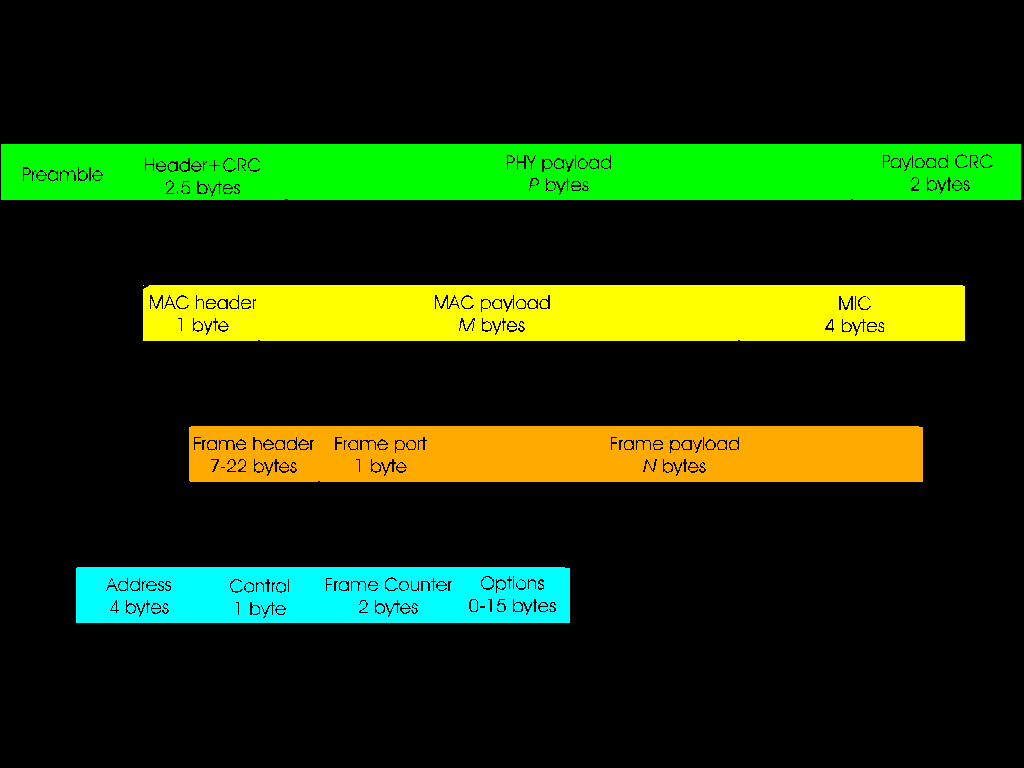
Meshtastic has been around since 2020, and was designed by Kevin Hester. Like APRS, Meshtastic is a terrifically simple protocol. Rather than provide a protocol analogous to NET/ROM, Meshtastic is a simple per-note-repeating protocol; as such, Meshtastic would need to address the following issues:
As such, the Meshtastic protocol needed to do several things to address those issues:
Meshtastic functions at the application layer of the LoRa network stack.
While the standard Bell 102/103 and G3RUH/KN9G AX.25 physical layer modems are rather popular, they simply do not offer very good performance in the modern age. EA5HVK created VARA as a successor to the aforementioned modems (and, more importantly, their shortcomings.
VARA has one key feature that sets it apart from the traditional packet TNCs and softmodems: it can dynamically vary its speed with band conditions. This is especially useful on HF, where band conditions could result in a rapidly-fluttering signal that would be totally unusable by traditional packet modems. VARA will detect this and vary its speed to compensate.
At the time of writing, there are three versions of VARA:
VARA is a Windows-only program, written in Visual Basic 5. Furthermore, it features rather draconian copy protection (with an encrypted code segment that is decrypted at runtime).
TODO
TODO
TODO
TODO
JNOS 2.0, Mainline
$ rsync -a www.langelaar.net::official jnos
JNOS 2.0 Help Files
http://hamgate.ampr.org/docs/_JNOS_help_files
JNOS 2.0, FreeBSD Port
https://github.com/HackerSmacker/jnos-freebsd
Linux AX.25 Programs
Wiki: https://linux-ax25.in-berlin.de/wiki/Main_Page
ax25-apps: https://linux-ax25.in-berlin.de/cgit/ax25-apps.git
ax25-tools: https://linux-ax25.in-berlin.de/cgit/ax25-tools.git
libax25: https:/:linux-ax25.in-berlin.de/cgit/libax25.git
BPQ Packet Engine, Mainline
https://github.com/g8bpq/linbpq
BPQ Packet Engine, FreeBSD Port
https://github.com/HackerSmacker/g8bpq-bsd
aprx for Linux
https://github.com/PhirePhly/aprx
C | |
Constellation Diagram | A diagram that displays amplitude and phase for various digital modulation modes, including PSK and QAM. |
CSS | Chirp Spread-Spectrum, a modulation mode often used for ISM band devices |
I | |
ISM Band | Various unlicensed radio bands that permit some amount of transmit power, but barely any; almost all of them (except for the 40 MHz band in most countries) overlap amateur radio bands. |
L | |
LoRa | "Long Range", a CSS modulation mode with very good SNR |
O | |
OSI Model | A reference model for a network stack also called the OSI Stack, which is often applied to other protocols. The layers are physical, data-link, network, transport, session, presentation, application |
P | |
PSK | "Phase-Shift Keying", a data modulation mode in which the phase of the signal is modulated |
Q | |
QAM | "Quadrature Amplitude Modulation", a data modulation mode where the amplitude and phase of the modulated analog waveform is varied |
S | |
SNR | "Signal-to-Noise Ratio", a ratio of the signal strength to the noise strength |
match in on $ext_if proto { 4, 94 } rdr-to $lan_ip